


Use QuickTime Player for fast Mac screen recordings, and use OBS Studio when you need control, audio choices, scenes, or longer videos. QuickTime is already on many Macs, so it is great for a quick demo. OBS Studio is free, open source, and works on Windows, macOS, and Linux [source: OBS Project]. If you want to record a media player, game, webinar, or tutorial with clean audio, OBS usually wins.
TLDR: QuickTime Player is the “press record and go” option for Mac users. OBS Studio is better for serious recording, like a 20-minute tutorial with webcam, microphone, and desktop audio. Example: if you record 10 short clips a week, QuickTime may save you setup time. But if even 30% of those clips need overlays or mixed audio, OBS will feel much less annoying.
Quick answer: which one should you pick?
- Pick QuickTime Player if you use a Mac and need a simple screen recording.
- Pick OBS Studio if you use Windows, Linux, or need more recording power.
- Pick OBS if you want webcam, scenes, source control, and better audio options.
- Pick QuickTime if you hate settings and just want a clean, basic file.
Honestly, it feels like QuickTime is made for people who say, “I need this recorded in 30 seconds.” OBS is made for people who say, “I need this to look good, sound good, and not embarrass me.” Both are useful. They just solve different problems.
What is OBS Studio?
OBS Studio is a free screen recorder and streaming app. It can record your whole display. It can record one window. It can record a game. It can record a media player. It can also add your webcam, microphone, images, text, and browser sources.
That sounds like a lot. It is. The first setup can feel a bit much. Expect to waste time on audio if you are new. Five minutes can turn into fifteen fast. But after that, OBS becomes very powerful.
OBS is popular with streamers, teachers, gamers, YouTubers, and people who make online courses. It is not just a recorder. It is more like a tiny video studio on your computer.
What is QuickTime Player?
QuickTime Player is Apple’s simple media player for Mac. It can play videos. It can also record your screen, record audio, and record from a camera. Apple explains the built-in screen recording option for Mac users here [source: Apple].
QuickTime is clean. It is quiet. It does not scare you with panels, mixers, and sources. You open it, choose a recording option, select the area, and start.
But it has limits. Big ones. If you need to capture internal system audio, QuickTime is not always friendly. It can record your microphone. Capturing sound from the computer itself may need extra tools. That can be irritating when all you wanted was to record a video clip with sound.
Recording your screen with QuickTime Player
If you are on a Mac, QuickTime is the fastest route.
- Open QuickTime Player.
- Click File.
- Choose New Screen Recording.
- Select the whole screen or a small area.
- Choose your microphone, if needed.
- Click Record.
- Stop when done.
- Save the file.
That is it. No scenes. No bitrates. No source list. Lovely.
QuickTime is best for:
- Short tutorials.
- Bug reports.
- Software demos.
- Recording a slide deck.
- Simple Mac screen captures.
It is not great for:
- Recording system audio without extra setup.
- Adding a webcam overlay.
- Recording multiple sources at once.
- Advanced video quality settings.
- Repeatable layouts for many videos.
Recording your screen with OBS Studio
OBS takes a little more setup. The reward is control.
- Install and open OBS Studio.
- Go to the Scenes box.
- Click the plus button.
- Name your scene, like Screen Recording.
- Go to Sources.
- Add Display Capture for the full screen.
- Add Window Capture for one app window.
- Add your microphone in the audio mixer.
- Click Start Recording.
The annoying part is that OBS asks you to think before you record. Which screen? Which window? Which audio source? Which format? QuickTime does not ask as much. But OBS gives you better tools once the setup is done.
Recording a media player
This is where the choice gets interesting. Say you want to record a video playing in VLC, QuickTime Player, Windows Media Player, or a browser.
With QuickTime, you can record the screen area where the media player is shown. That works for simple visual capture. But audio can be tricky. If the sound is coming from the computer, QuickTime may not grab it by default. You may get a silent video. Very fun. Not.
With OBS, you can use Window Capture or Display Capture. On Windows, desktop audio capture is usually simple. On Mac, it may depend on your OBS version and audio setup. Some users may need to choose app audio capture or install another audio tool.
A small warning: some protected video services block screen recording. You may see a black screen. This is common with DRM-protected content. Also, only record media you own, created, or have permission to use.
Audio: the part that ruins your mood
Audio is where QuickTime feels too basic.
QuickTime can record your mic. That is fine for voice notes, quick demos, and feedback clips. But if you want to record a media player with internal audio, you may need extra software. It drives me crazy that such a simple task can become a tiny tech project.
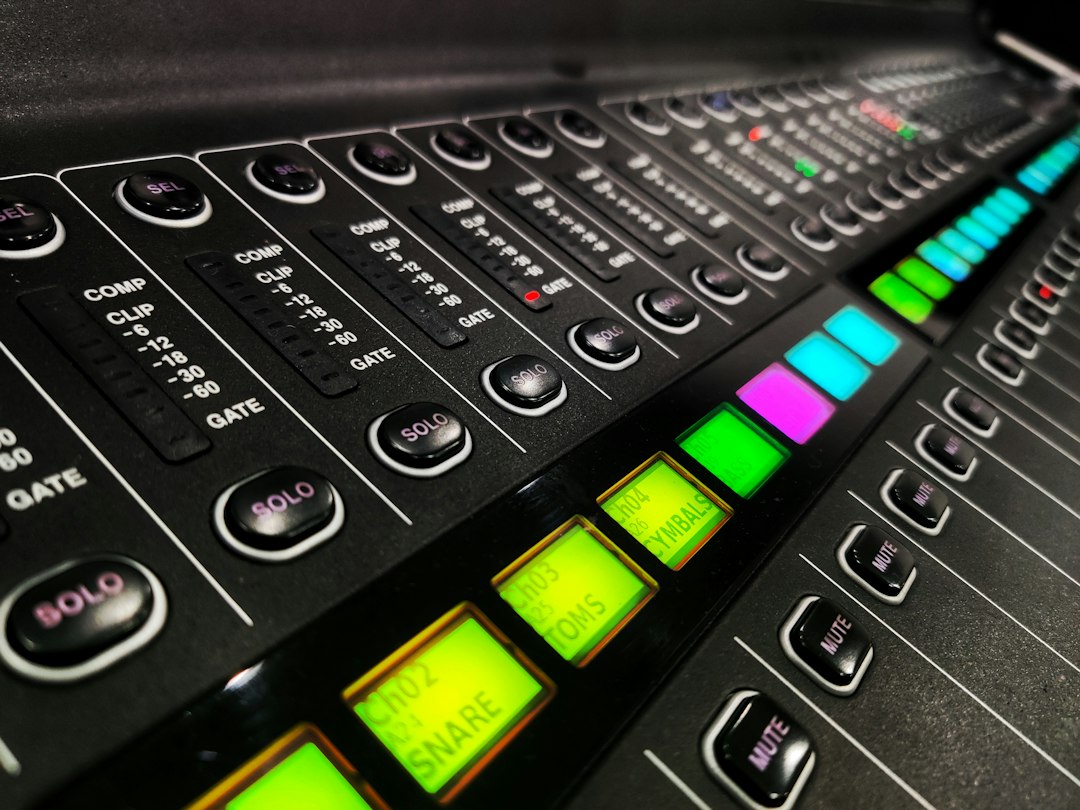
OBS is better for audio control. You can see audio meters. You can mute sources. You can adjust levels. You can record your mic and system sound together. You can also add filters like noise suppression.
For clean tutorials, OBS wins. For “I just need to show this bug,” QuickTime is enough.
Video quality and file size
QuickTime makes nice-looking files with very little effort. You do not need to choose much. That is the charm.
OBS lets you choose more. You can set resolution, frames per second, encoder, bitrate, and file format. This matters for YouTube, courses, gaming clips, and crisp software demos.
A simple setup for OBS might be:
- Resolution: 1920 x 1080.
- FPS: 30 for tutorials, 60 for games.
- Format: MKV while recording, then remux to MP4.
- Audio: 48 kHz, with mic checked before recording.
Why MKV? If OBS crashes, MKV is safer than MP4. You can convert it inside OBS after recording. That one setting can save a whole afternoon.
Ease of use
QuickTime is easier. No contest.
It has fewer buttons. Fewer choices. Fewer ways to mess things up. That is perfect for beginners.
OBS is harder at first. But it becomes easier after you build one or two scenes. Once your scene is ready, you can reuse it every time.
Think of QuickTime as a toaster. Think of OBS as a kitchen. The toaster is faster. The kitchen can make dinner.
Best use cases
Use QuickTime Player when:
- You are on a Mac.
- You need a quick screen recording.
- You do not need internal audio.
- You want fewer settings.
- You are sending a fast clip to a coworker.
Use OBS Studio when:
- You want to record a media player with sound.
- You need webcam plus screen.
- You make YouTube videos.
- You teach online.
- You record games or live streams.
- You want repeatable layouts.
Quick setup tips
- Do a 10-second test first. Always. It saves pain.
- Check audio meters. If they do not move, you are not recording sound.
- Close private tabs. Your screen sees everything.
- Use headphones. This helps stop echo.
- Record a smaller area if your computer is slow.
- Name files clearly. “final final 2” is not a system.
Final verdict
QuickTime Player is best for simple Mac screen recording. It is fast, clean, and beginner-friendly. If your task is short and plain, use it.
OBS Studio is best for serious recording. It is better for media players, mixed audio, webcam overlays, games, tutorials, and anything you plan to publish. It takes longer to set up, but it pays you back.
If you are still unsure, use this rule: QuickTime for speed. OBS for control. That is the whole fight.