


Many Grindr users notice a small red dot next to their inbox or messages and wonder what it means—and more importantly, how to remove it. While the red dot is a simple notification indicator, it can sometimes linger even after messages have been read, causing confusion or frustration. Understanding why it appears and the proper steps to clear it can help keep the app interface clean and stress-free. This guide explains everything users need to know about removing the red dot from inbox messages on Grindr.
TLDR: The red dot on Grindr indicates unread messages or notifications. To remove it, users usually need to open unread chats, refresh the inbox, or restart the app. If the dot remains, clearing cache, updating the app, or reinstalling Grindr may solve the issue. Persistent red dots are often caused by hidden unread messages or minor app glitches.
What the Red Dot on Grindr Means
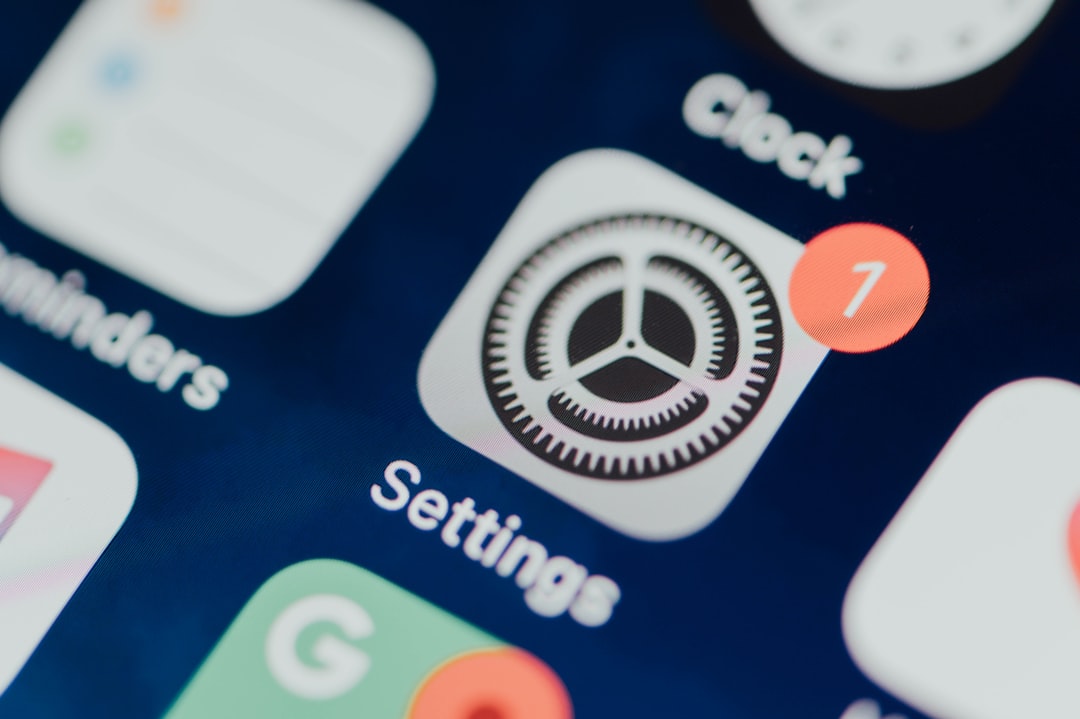
The red dot acts as a notification badge. Its primary purpose is to alert users that there is new activity in their inbox, such as:
- Unread messages
- New taps
- Profile views (if applicable)
- Notifications from ongoing conversations
In most cases, the red dot disappears automatically once all unread notifications have been opened. However, sometimes it remains visible even after messages appear to have been read. This can happen for several reasons, including app syncing delays or hidden conversation threads.
Image not found in postmetaStep-by-Step: How to Remove the Red Dot
If a user wants to remove the red dot from their inbox messages, they can follow these simple steps.
1. Open and Review All Unread Messages
The first and most straightforward solution is to carefully check all conversations. Users should:
- Open the inbox section fully
- Scroll to the bottom of message threads
- Open every conversation with bold or highlighted text
- Tap on new taps or activity notifications
Sometimes a hidden unread message in an older thread keeps the red dot active.
2. Refresh the Inbox
If all messages are read and the red dot is still visible, refreshing the inbox may help. This can be done by:
- Pulling down on the inbox screen to refresh
- Switching between tabs (Chats, Taps, Favorites)
- Waiting a few seconds for server syncing
Grindr occasionally experiences slight delays when syncing notifications across its servers.
3. Close and Restart the App
Force-closing the app often resolves minor visual glitches. The user can:
- Exit Grindr completely
- Remove it from the recent apps list
- Reopen the application
This resets the app’s active session and refreshes notification data.
4. Log Out and Log Back In
Logging out of the account can help if the issue persists. Doing so forces a re-sync with Grindr’s servers. After logging back in, the app typically refreshes inbox status correctly.
5. Clear Cache (Android Only)
Android users can clear the app’s cache without deleting personal data:
- Go to Settings
- Select Apps
- Tap Grindr
- Select Storage
- Tap Clear Cache
Clearing cache removes temporary data that may interfere with notification badges.
6. Update the App
An outdated version of Grindr may contain bugs that cause red notification dots to linger. Checking the App Store or Google Play Store for updates can resolve known issues.
7. Reinstall Grindr
If none of the previous solutions work, reinstalling the app is often the most effective solution. Before doing so, users should ensure they know their login credentials.
Steps include:
- Delete the Grindr app
- Restart the phone (optional but recommended)
- Download Grindr again
- Log back into the account
This installs a fresh version of the app, eliminating embedded glitches.
Why the Red Dot Sometimes Won’t Disappear
There are several common reasons why the red dot remains visible:
Hidden or Filtered Messages
Some messages may fall into filtered sections, depending on account settings. Reviewing all tabs ensures no message is overlooked.
Message Requests
Users may receive messages from profiles outside their usual filters. These sometimes do not appear in the primary inbox immediately.
Server Delays
Occasionally, Grindr’s servers experience temporary sync delays. The red dot may persist until the system completes background updates.
App Bugs
Like any mobile app, Grindr may experience minor bugs after updates. Developers usually fix these in subsequent releases.

How to Manage Notifications More Effectively
Beyond simply removing the red dot, users may prefer to manage notifications more proactively.
Adjust Push Notifications
Inside the app settings, users can toggle:
- Message notifications
- Tap notifications
- Sound alerts
- Vibration settings
This does not remove the red dot feature entirely but helps control how often alerts appear.
Mark Conversations as Read Immediately
Opening messages fully and scrolling through them ensures the system registers them as “read.” Partially opened chats sometimes do not clear badge indicators.
Keep the App Updated
Regular updates minimize bugs and ensure smoother notification syncing.
Does Grindr Allow You to Disable the Red Dot?
Currently, Grindr does not offer an in-app option to completely disable the red dot notification badge. The indicator is built into the user interface as part of the app’s notification system.
However, device-level settings provide an alternative:
- On iPhone: Settings > Notifications > Grindr > Disable “Badges.”
- On Android: Settings > Notifications > App Notifications > Grindr > Disable notification badges.
This removes the red dot from the app icon on the home screen but may not always remove it from inside the app interface itself.
When to Contact Support
If the red dot remains after:
- Reinstalling the app
- Clearing cache
- Confirming all messages are read
- Updating to the latest version
It may be helpful to contact Grindr support. Providing details such as the device model, operating system version, and app version can speed up troubleshooting.
Final Thoughts
The red dot in Grindr’s inbox serves a practical purpose: alerting users to new activity. In most cases, it disappears once unread messages are opened. When it remains visible, simple technical fixes such as refreshing the app, clearing cache, or reinstalling usually resolve the problem.
Understanding how notification systems work—both within the app and at the device level—empowers users to take control of their experience. While the red dot may seem small, keeping notifications organized can significantly improve everyday app usability.
Frequently Asked Questions (FAQ)
1. Why is the red dot still showing after I read all my messages?
This often happens due to hidden unread messages, message requests, or temporary syncing delays. Restarting the app or refreshing the inbox usually fixes the issue.
2. Can I completely disable the red dot inside Grindr?
Grindr does not currently allow users to disable the in-app red dot feature. However, users can disable notification badges at the device level.
3. Does blocking someone remove the red dot?
Blocking a user removes their conversation, but if another unread message exists elsewhere, the red dot may remain.
4. Will reinstalling Grindr delete my messages?
Messages are generally tied to the account rather than the device. However, it is advisable to ensure login credentials are saved before reinstalling.
5. Is the red dot a sign that someone new messaged me?
Yes, typically it indicates new unread activity such as messages or taps.
6. Why does the red dot reappear after I clear it?
If new activity occurs or delayed notifications sync with the server, the red dot may reappear.
7. Does Grindr XTRA or Unlimited change how notifications work?
Premium versions offer additional features but do not remove or fundamentally change the red dot notification system.