

Installing or reinstalling macOS on an older Mac can feel surprisingly dramatic: the progress bar inches forward, the screen promises it is “preparing,” and then nothing happens. Sometimes the installer quits, reports that it is damaged, refuses to verify, or claims it cannot contact the recovery server. These problems are common on aging Macs, but they are usually solvable with a careful troubleshooting process.
TLDR: macOS installer preparation issues on older Macs are often caused by incorrect system date and time, expired certificates, incompatible installer versions, disk problems, weak internet connections, or outdated firmware. Start by confirming compatibility, resetting the date in Terminal, checking the drive with Disk Utility, and using the correct installer for that Mac. If Recovery Mode fails, create a bootable USB installer from another Mac and install from there.
Why Older Macs Struggle During Installer Preparation
When a Mac says it is preparing to install, it is doing more than copying files. It may be verifying the installer certificate, checking the target disk, contacting Apple’s servers, unpacking installation data, reviewing firmware requirements, and confirming that the operating system is suitable for the machine. On older Macs, any one of these checks can fail.
The most common culprits are not mysterious hardware failures. They are usually practical issues: the Mac’s internal clock is wrong, the installer certificate has expired, the drive has formatting or directory errors, the macOS version is too new, or the machine cannot reliably connect to Apple’s recovery servers. The good news is that most fixes do not require replacing parts.

First, Confirm macOS Compatibility
Before doing anything more advanced, check whether the Mac actually supports the macOS version you are trying to install. Older Macs have strict limits. For example, a 2012 MacBook Pro can run newer systems than a 2009 MacBook, while many pre-2012 models cannot officially install recent macOS versions.
If the installer starts but fails during preparation, incompatibility may still be the issue. Some installers will launch but fail later, especially if the installer was downloaded for a different Mac or if the target machine lacks a required firmware update.
- Identify the Mac model: choose Apple menu > About This Mac if macOS still boots.
- If macOS does not boot: look up the serial number on Apple’s support site or check the model identifier printed on the chassis.
- Match the installer: use the highest officially supported macOS version unless you have a specific reason to use an older one.
For many older Macs, macOS High Sierra, Mojave, Catalina, or Big Sur may be the realistic endpoint. Trying to force an unsupported version without patching tools can lead to repeated preparation failures.
Check the Date and Time in Terminal
One of the most famous causes of macOS installer trouble is a wrong system date. Installer certificates are valid only within certain date ranges. If your Mac’s clock is years off because the battery was drained or the machine sat unused, the installer may appear “damaged” or fail near the preparation stage.
To check and set the date from macOS Recovery:
- Boot into Recovery by holding Command + R during startup.
- Open Utilities > Terminal from the menu bar.
- Type
dateand press Return to see the current system date.
If the date is wrong, set it manually using this format:
date MMDDHHMMYY
For example, to set the date to January 15, 2026 at 2:30 PM, you would type:
date 0115143026
Then quit Terminal and try the installer again. For older installers, there is a twist: if you are using an old macOS installer whose certificate expired, setting the date to a time closer to when the installer was valid can help. For example, some older OS X installers work better when the date is set to 2016 or 2017. This is not always necessary, but it can be useful when you see warnings like “This copy of the Install macOS application is damaged”.
Inspect the Disk with Disk Utility
A failing or poorly formatted disk can cause preparation to hang indefinitely. Older Macs often still have original hard drives, and mechanical drives are far more likely to develop bad sectors or slow performance. Even if the drive is not physically failing, its file system may need repair.
From Recovery Mode, open Disk Utility. Choose View > Show All Devices so you can see the physical disk, containers, and volumes. Select the top-level internal drive and run First Aid. Then run First Aid on any containers and volumes underneath it.
If you plan to erase the disk, choose the correct format:
- APFS: recommended for macOS High Sierra and later, especially if the Mac has an SSD.
- Mac OS Extended Journaled: often better for older macOS versions or traditional hard drives.
- GUID Partition Map: required for bootable Intel Mac startup disks.
Be careful: erasing the disk deletes all data. If you need files from the Mac, attempt a backup first using Target Disk Mode, an external enclosure, or another Mac.
Use the Right Recovery Mode
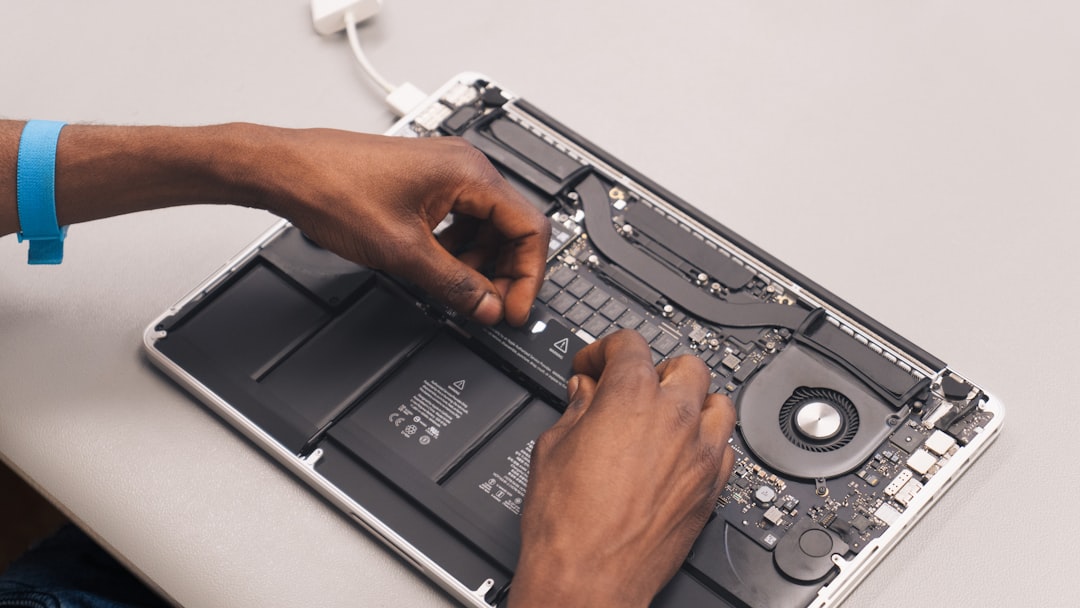
Intel Macs may provide more than one recovery startup option, and choosing the right one matters. The installer offered by Recovery Mode depends on the key combination used at startup and on the Mac’s firmware support.
- Command + R: reinstalls the most recent macOS that was installed on the Mac, if available.
- Option + Command + R: attempts to install the latest macOS compatible with the Mac.
- Shift + Option + Command + R: attempts to install the macOS version that came with the Mac, or the closest still available version.
On older machines, Internet Recovery can be slow or unreliable. If the installer hangs while preparing or says it cannot contact the recovery server, try another network. A wired Ethernet connection is often more stable than Wi Fi, especially on older MacBook models or in areas with crowded wireless networks.
Watch for Certificate and “Damaged Installer” Errors
Apple has changed macOS installer certificates over the years. An installer downloaded long ago may no longer pass verification, even if it is otherwise complete. This is common with OS X El Capitan, Sierra, High Sierra, and other older installers.
If you see messages such as “This copy of the Install macOS application is damaged and can’t be used”, do not assume the file is truly corrupted. It may simply have an expired certificate or a date mismatch.
Try these fixes:
- Download a fresh installer from Apple using a compatible Mac.
- Set the system date correctly in Recovery Terminal before launching the installer.
- For very old installers, set the date back to the approximate release period of that macOS version.
- Delete incomplete installer files and download again if the installer was interrupted.
A complete macOS installer is usually several gigabytes in size. If the file is suspiciously small, it may be a stub installer rather than the full installer application, which can cause problems when creating USB media or installing offline.
Create a Bootable USB Installer
If Recovery Mode keeps failing, a bootable USB installer is often the cleanest solution. You will need another working Mac, a USB drive with at least 16 GB of storage, and the correct macOS installer downloaded into the Applications folder.
The broad process is:
- Download the macOS installer on a compatible Mac.
- Erase the USB drive using Disk Utility.
- Use Apple’s
createinstallmediacommand in Terminal. - Boot the older Mac while holding the Option key.
- Select the USB installer from the startup picker.
The exact Terminal command depends on the macOS version. Apple publishes the proper createinstallmedia syntax for each installer. Make sure the installer remains in the Applications folder and that the USB volume name matches the command you type.
For older Macs, a USB 2.0 drive is usually fine, though a reliable brand-name drive is better than a cheap promotional stick. If the bootable installer fails to appear at startup, try another USB port, recreate the installer, or reset NVRAM.
Reset NVRAM and SMC
Older Macs can store startup and hardware configuration data that occasionally interferes with installation. Resetting NVRAM and SMC is not a magic cure, but it is quick and sometimes helpful, especially when startup disks do not appear, Recovery behaves strangely, or the Mac shuts down during installation.
To reset NVRAM on most Intel Macs, restart and immediately hold Option + Command + P + R for about 20 seconds. The Mac may restart during the process.
Resetting the SMC depends on the model. On many older Mac notebooks with non-removable batteries, shut down, then hold Shift + Control + Option on the left side of the keyboard plus the power button for 10 seconds. Release all keys, then turn the Mac back on. Desktop Macs usually require unplugging the power cord, waiting, and reconnecting it.
Check the Hardware Before Blaming the Installer
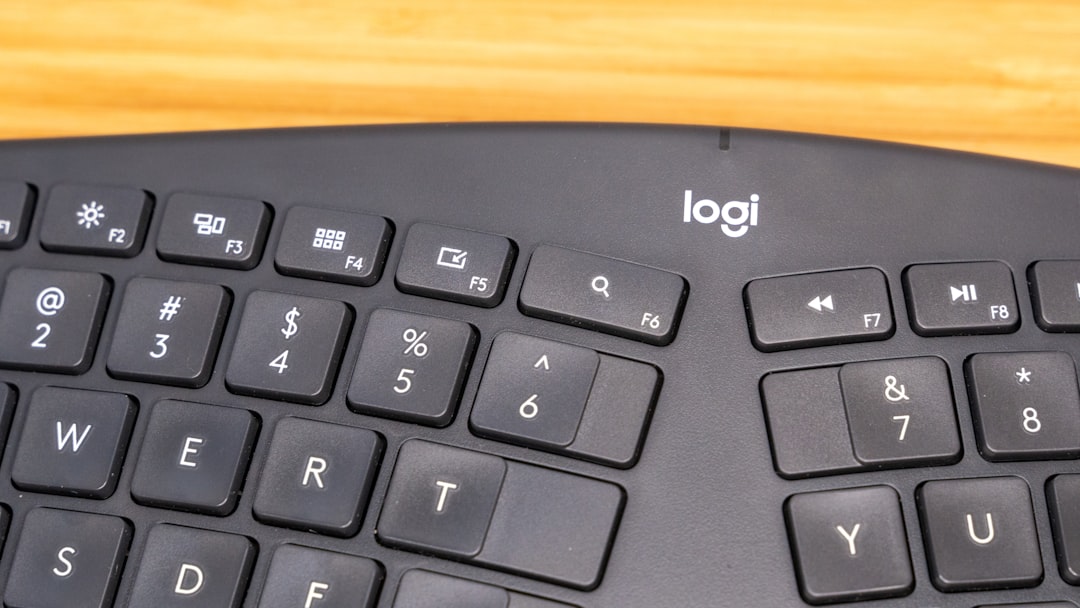
If preparation repeatedly fails at the same point, the installer may be revealing a deeper issue. Older hard drives, failing SSDs, weak RAM, and overheating can all interrupt installation. A Mac that works lightly in Recovery Mode may still fail under the heavier workload of installing macOS.
Run Apple Diagnostics or Apple Hardware Test by restarting and holding the D key. On some older Macs, you may need the original installation disc or Internet-based diagnostics. Hardware tests do not catch everything, but they can reveal memory, sensor, or logic board problems.
Pay special attention to these warning signs:
- The installer freezes at random percentages each time.
- The internal drive clicks, disappears, or reports repeated First Aid failures.
- The Mac shuts off suddenly during installation.
- The machine becomes extremely hot even while idle.
- Installation succeeds on an external drive but not the internal drive.
For many older Macs, replacing a mechanical hard drive with an SSD is the single best upgrade. It can also eliminate installer failures caused by a dying disk.
Try Installing to an External Drive
If you are unsure whether the internal drive is the problem, install macOS onto an external USB or Thunderbolt drive. Format it correctly in Disk Utility, select it as the installation target, and see whether the installer completes. If it does, the Mac itself is probably functional, and the internal disk or cable may be at fault.
This test is especially useful on older MacBook Pro models where the internal SATA cable can fail. A bad cable can mimic a failing drive, causing slow performance, installation errors, and random boot problems. If an SSD works externally but not internally, suspect the cable.
Be Patient, But Know When It Is Stuck
Older Macs can spend a long time on “preparing.” A mechanical hard drive, slow USB installer, or weak internet connection may make the process look frozen. Give it time, especially if the cursor still moves or the disk activity light is blinking.
However, if the same screen remains unchanged for several hours with no disk activity, it is reasonable to restart and troubleshoot. Write down the exact error message if one appears. Small differences matter: “cannot contact recovery server” points toward network or server communication, while “damaged installer” suggests certificates, dates, or incomplete downloads.
A Practical Troubleshooting Order
When you want the shortest path to success, use this order:
- Confirm compatibility between the Mac model and macOS version.
- Check the date in Recovery Terminal and correct it if needed.
- Run Disk Utility First Aid on the internal drive.
- Try the appropriate Recovery shortcut for the desired macOS version.
- Use Ethernet or a stronger network if Internet Recovery fails.
- Create a bootable USB installer from another Mac.
- Test with an external drive if internal installation keeps failing.
- Run hardware diagnostics if symptoms suggest a deeper fault.
Troubleshooting macOS installer preparation issues on older Macs is mostly about eliminating variables. Do not keep retrying the same failed installation indefinitely. Change one condition at a time: the date, the installer source, the disk format, the network, or the target drive.
With patience and a methodical approach, many older Macs can be revived and made useful again. Whether you are restoring a beloved MacBook Pro, preparing an iMac for a second life, or rescuing files from a machine that has been in a closet for years, the installer’s “preparing” stage is not the end of the road. It is simply the Mac asking you to check the fundamentals before it can move forward.