


Fix the slow internet by finding where it breaks first. Do not guess. Test the room, the router, and the path to the internet. If your plan says “fast” but you get under the FCC’s 100 Mbps down and 20 Mbps up broadband mark, you have a real problem to chase [source: FCC].
TLDR: Use WiFiman first if WiFi feels weak in certain rooms. Use Fing if you think too many devices are hogging the network. Use PingPlotter if speed tests look fine, but games, calls, or streaming still lag. Example: if your laptop gets 220 Mbps beside the router but only 18 Mbps in the kitchen, WiFiman will likely find a weak signal fast.
First, stop blaming “the internet”
Slow internet is not always your provider’s fault. Annoying, yes. But often true.
The problem can be one of four things:
- Bad WiFi signal in one room.
- Too many devices eating bandwidth.
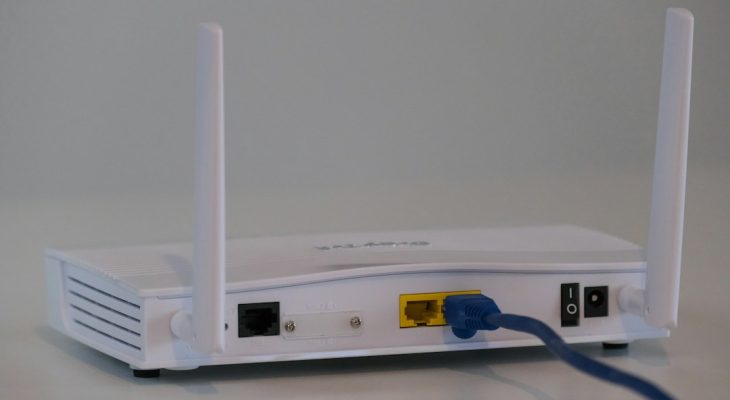
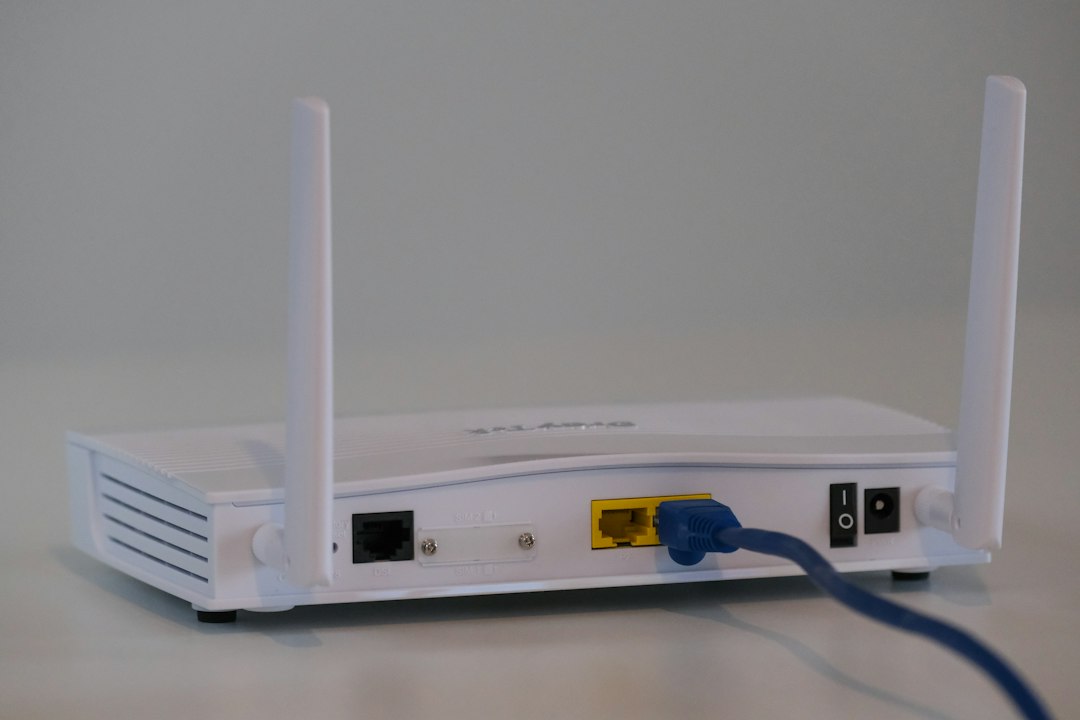
- A router issue that needs a reboot or upgrade.
- Packet loss somewhere between you and the site or game server.
That is why one tool is not enough for every case. Fing, WiFiman, and PingPlotter each solve a different mystery.
Fing: best for finding sneaky devices
Fing is like a guest list for your WiFi. It scans your network and shows what is connected.
You may see your phone, laptop, smart TV, printer, cameras, game console, and that weird “unknown device” that makes you say, Wait, what is that?
Use Fing when:
- Your internet slows down at night.
- You suspect a neighbor has your password.
- You have many smart home gadgets.
- You want a simple speed test and device list.
Quick fix: Open Fing. Scan the network. Look for devices you do not know. If you find one, change your WiFi password. Then reconnect only your own devices.
Fing is friendly. It is easy to read. But it will not always tell you why a game is lagging or why Zoom freezes every ten minutes. That is not its main job.
WiFiman: best for weak WiFi spots
WiFiman is great when the problem changes by room. Fast in the living room. Terrible in the bedroom. Dead in the bathroom, because of course it is.
It shows signal strength, nearby networks, and WiFi details. If you use Ubiquiti gear, it gets even better. But you can still use it as a simple WiFi checker.
Watch the signal number. It is usually shown in dBm. Less bad is better. Yes, that sounds silly.
- -30 dBm: Amazing signal.
- -50 dBm: Very good.
- -67 dBm: Usually fine for video calls.
- -75 dBm or worse: Expect pain.
Quick fix: Walk around with WiFiman open. Test near the router. Then test in the slow room. If the signal drops from -45 dBm to -78 dBm, your WiFi is the problem.
Move the router higher. Keep it away from thick walls, metal shelves, fish tanks, and microwaves. Yes, fish tanks are WiFi villains. Water blocks signal.

PingPlotter: best for lag, packet loss, and rage
PingPlotter is for the “speed test says fine, but everything still feels broken” problem.
It checks the route from your device to a server. Then it shows delay and packet loss over time. This is gold for gamers, remote workers, and anyone on video calls.
Use PingPlotter when:
- Your game rubber-bands.
- Video calls freeze.
- Streaming buffers at random times.
- Your ping jumps from 30 ms to 400 ms.
- Your provider says, “Everything looks fine here.”
Quick fix: Run PingPlotter to a site like google.com or your game server. Let it run for 10 minutes. If you see 5% packet loss at your router, it is likely your home network. If loss starts after your router, your provider may need to fix it.
Honestly, it feels like PingPlotter was made for proving you are not imagining things. The graphs are not cute. But they are useful.
Which one should you use first?
Pick based on your symptom. Do not install everything and start clicking like a raccoon with a keyboard.
- Slow only in one room? Use WiFiman.
- Slow for everyone at home? Use Fing first.
- Speed is fine, but lag is awful? Use PingPlotter.
- Unknown devices appear? Use Fing.
- Signal drops behind two walls? Use WiFiman.
- Calls fail every few minutes? Use PingPlotter.
A simple 15-minute fix plan
Try this before buying a new router.
- Run a speed test near the router. Write down the result.
- Run the same test in the slow room. Big drop? Think WiFi.
- Open WiFiman. Check signal strength in both spots.
- Open Fing. Remove unknown devices from your network.
- Restart the router. Wait two full minutes.
- Run PingPlotter. Check for packet loss or huge ping spikes.
If the router area gets 500 Mbps and the bedroom gets 40 Mbps, do not yell at your provider yet. Add a mesh node. Move the router. Or use Ethernet for the important stuff.
Final pick
Fing is the best starter tool. It is simple and shows who is on your network.
WiFiman is the best WiFi detective. It helps you find weak rooms and bad router spots.
PingPlotter is the best proof tool. It shows lag and packet loss over time.
For most homes, use them in this order: WiFiman, Fing, then PingPlotter. Start with the air around you. Then check the devices. Then check the wider internet path.
Slow internet feels personal. It is not. It is usually just a weak signal, a noisy network, or packets getting lost like socks in a dryer. With the right tool, you can find the cause fast. Then you can fix it without guessing.