

Edit the existing layer first, and rebuild only when the PDF is scanned, locked, or structurally broken. On Android, most everyday PDF changes can be handled directly on the file: add text, cover old text, sign, highlight, insert pages, delete pages, or fill forms. You do not need to export everything to Word, reformat it, and create a new PDF unless the document truly requires deep layout changes.
TLDR: Use a PDF editor that supports annotations, text boxes, form filling, page tools, and OCR. For example, if a delivery driver needs to correct a wrong phone number on a contract, they can open the PDF, place a white box over the old number, type the new one, and save a copy in under two minutes. For many office teams, small edits like signatures, dates, initials, and page swaps account for most mobile PDF work, often more than 70% of daily changes. Rebuilding the whole document should be the last option, not the first.
What “editing a PDF” really means on Android
A PDF is not like a normal text document. It is closer to a fixed print file. That is why editing on Android can feel oddly limited. You tap a line, expect a cursor, and nothing happens. Annoying, but normal.
There are three common types of PDF edits:
- Surface edits: adding text, highlights, comments, stamps, signatures, and drawings.
- Page edits: inserting, deleting, rotating, extracting, or reordering pages.
- Content edits: changing original text, replacing images, or adjusting layout.
The first two are usually easy on Android. The third depends on the app and the PDF itself. If the file was created from Word or another digital source, direct text editing may work. If it is a scan or photo, you need OCR, which means optical character recognition.
Start with a copy, not the original
Before you touch anything, make a duplicate. This sounds basic, but it prevents real trouble. PDF edits may flatten comments, alter signatures, or change form fields. Once saved, some changes are hard to reverse.
Use a clear file name, such as:
- Contract client name edited 2026 08 28.pdf
- Invoice corrected copy.pdf
- Lease signed mobile version.pdf
If the file matters legally, keep the original untouched. Store the edited copy separately in Google Drive, OneDrive, Dropbox, or local device storage.
Use annotations for small text fixes
If you only need to add a date, note, name, address, or short correction, do not rebuild the file. Use the annotation tools.
A common method is simple:
- Open the PDF in a reliable Android PDF editor.
- Select Text or Add text box.
- Tap where the new text should appear.
- Match the font size as closely as possible.
- If needed, place a white rectangle over old text first.
- Save the file as a new copy.
This is not a perfect replacement for true text editing. Still, it works well for practical fixes. Honestly, it feels like overkill to convert a two-page PDF to Word just to change one apartment number.
Fill forms instead of editing the page
Many PDFs already contain fillable fields. If you tap a blank line and a keyboard appears, use it. Fillable forms are cleaner than text overlays because the entered data stays aligned and easier to read.
Good Android PDF apps can usually handle:
- Text fields for names, addresses, and dates.
- Checkboxes for selections.
- Radio buttons for single-choice answers.
- Signature fields for signing.
- Dropdown fields in structured forms.
If the form does not respond, it may be a flat PDF. In that case, use text boxes and checkmark stamps. Zoom in before placing them. A 2 mm misalignment can make a document look careless.
Sign without printing
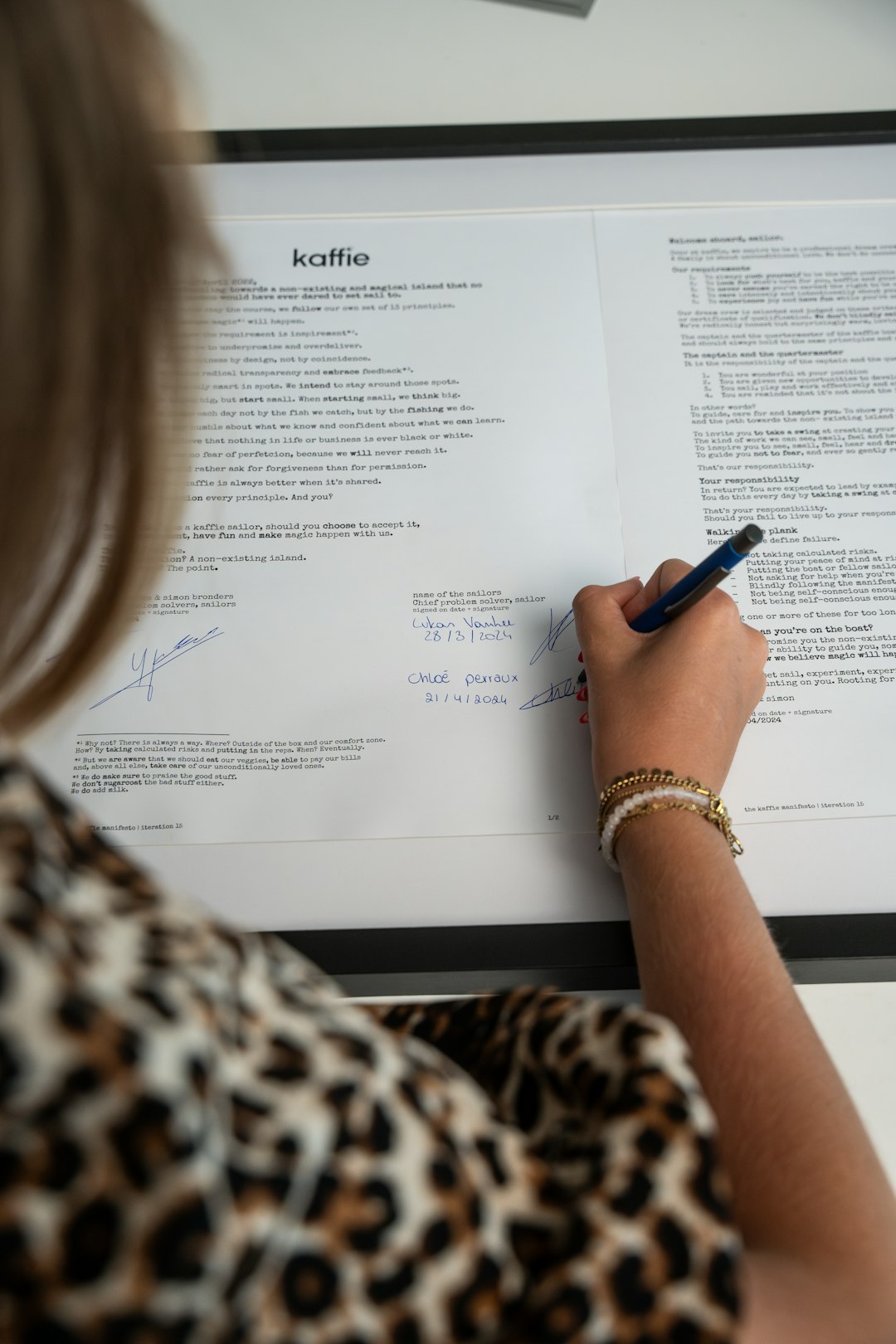
Signing is one of the best reasons to edit PDFs on Android. Most editors let you create a reusable signature with your finger or stylus. Some also allow typed signatures, saved initials, and date fields.
For serious documents, check whether the recipient requires a digital certificate signature rather than a simple drawn signature. They are not the same. A drawn signature is an image. A certificate signature can show whether the file changed after signing.
Expect to waste time on this if the app hides signature tools under “Fill and Sign,” “Markup,” or “Annotate.” The labels vary, and some apps add two extra taps for no good reason.
Use OCR for scanned PDFs
A scanned PDF is basically a set of images. You cannot edit the words until software reads the image and turns it into selectable text. That is what OCR does.
Use OCR when:
- You cannot select any text.
- The file came from a scanner or camera.
- The text looks slightly blurry or uneven.
- Search does not find words that are clearly visible.
OCR is useful, but not magic. It can misread small print, stamps, handwriting, tables, and poor scans. Always proofread names, ID numbers, totals, dates, and legal clauses. One wrong digit in an account number can cause a nasty delay.
Edit pages without touching the content
Sometimes the fastest fix is not a text edit. It is a page edit. Android PDF tools can often remove blank pages, rotate sideways scans, insert a signed page, or combine files.
This is ideal for tasks like:
- Deleting an accidental blank page.
- Replacing a page with a corrected scan.
- Adding receipts behind an expense report.
- Combining a signed agreement with supporting documents.
- Extracting only the pages needed for a client or agency.
Page tools preserve the rest of the document. That reduces the risk of broken spacing, shifted tables, or missing images.
When converting to Word makes sense
Conversion should be reserved for larger rewrites. Use it when you must change paragraphs, restyle headings, revise tables, or restructure several pages.
Even then, be careful. PDF-to-Word conversion may damage:
- Complex tables.
- Multi-column layouts.
- Headers and footers.
- Numbered sections.
- Embedded fonts.
- Images and logos.
After editing, export back to PDF and compare it with the original. Check page breaks, totals, signatures, and alignment. A document can look fine on a phone and still print badly.
Choose the right Android PDF editor
Pick an editor based on the job, not the logo. A trustworthy PDF app should offer clear saving options, local file access, cloud support, and a privacy policy that is easy to understand.
Useful features include:
- Text boxes and shapes for quick corrections.
- Highlighting and comments for review work.
- Form filling for applications and contracts.
- Signature tools for approvals.
- Page management for rearranging files.
- OCR for scans.
- Flattening to lock visible annotations into the PDF.
Be cautious with free editors that upload every file to their servers without making that clear. For tax records, contracts, medical forms, or identity documents, prefer reputable apps with offline editing or known business-grade security controls.
Save, flatten, and share carefully
When your edits are done, review the full document at 100% zoom if possible. Then decide whether to keep fields editable or flatten the file. Flattening turns annotations and form entries into fixed page content. This helps prevent accidental changes by the next person.
Use Save As when available. Then reopen the finished PDF before sending it. Check that signatures appear, pages are in order, and no private notes remain in comments. If the file is large, compress it only after verifying that text stays readable.
Best practical workflow
- Open a copy of the PDF.
- Decide whether it is digital text or a scan.
- Use form fields if they exist.
- Use annotations for small additions or corrections.
- Use page tools for inserts, removals, and rotations.
- Use OCR only when text is trapped inside an image.
- Convert to Word only for major rewrites.
- Save a new copy, review it, then share.
The serious answer is simple: do the smallest safe edit that solves the problem. Android can handle most PDF tasks without rebuilding the entire document. Treat conversion as a last resort, protect the original, and check the final file before it leaves your phone.