



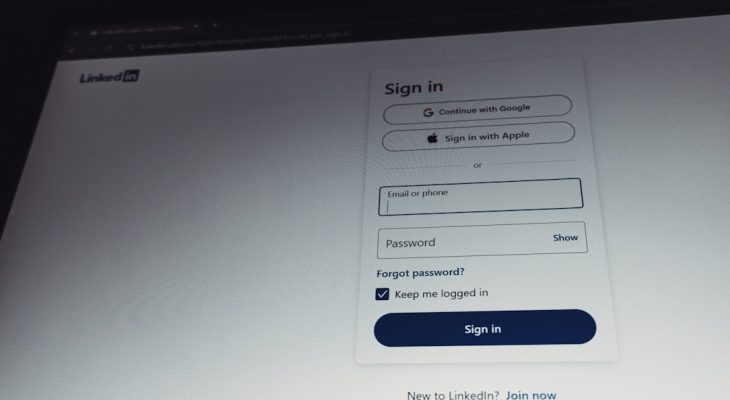
MyGlue is a password and documentation platform commonly used by managed service providers and internal IT teams to give clients or employees secure access to shared knowledge. It helps organizations store passwords, procedures, SOPs, asset notes, and business-critical information in one controlled workspace. A clear login process is important because MyGlue often protects sensitive operational data that must remain both accessible and secure.
TLDR: MyGlue login access usually starts from an organization-specific portal, where a user enters an email address, password, and sometimes a multi-factor authentication code. For example, a 25-person accounting firm may use MyGlue to store software logins, tax-season checklists, and vendor contacts, reducing repeated password requests by an estimated 40%. The platform’s documentation features make it useful for teams that need consistent, searchable information. Most login problems are caused by incorrect URLs, expired invitations, browser issues, or multi-factor authentication errors.
Understanding MyGlue Access
MyGlue is typically provided through an organization, IT provider, or managed service provider rather than being used as a fully independent public sign-up tool. A user generally receives an invitation email that includes setup instructions and a link to the correct company portal. Since each organization may have its own MyGlue environment, using the correct portal address is essential.
The standard login process usually includes the following steps:
- Open the organization’s MyGlue login page: The user should access the portal link provided by the administrator or IT provider.
- Enter the registered email address: This should match the email used during the invitation or account setup process.
- Enter the password: The password must meet the organization’s security requirements.
- Complete multi-factor authentication: If enabled, the user may need to enter a code from an authenticator app, email, SMS, or another approved method.
- Access assigned documentation and passwords: Once logged in, the user only sees the items permitted by role-based access rules.
Security permissions are important in MyGlue. A finance employee, for example, may be able to view accounting software credentials but not HR documents. A department manager may access internal procedures but not administrative passwords. This role-based approach helps organizations reduce unnecessary exposure to sensitive information.

Key Documentation Features in MyGlue
MyGlue is more than a password vault. It is designed to help teams document repeatable processes, store reference materials, and reduce reliance on memory or informal messages. The platform is especially useful for organizations that want employees to locate approved information without asking IT or management each time.
Password and Credential Management
One of the most common MyGlue features is secure password storage. Approved users can access business credentials from a central location instead of saving passwords in spreadsheets, browser notes, or shared documents. Access can be limited by user, group, or organization, helping administrators maintain control over who can view or edit credentials.
Standard Operating Procedures
MyGlue can store standard operating procedures, onboarding steps, troubleshooting guides, checklists, and recurring task instructions. These documents help keep work consistent across departments. For example, a new employee may follow a documented onboarding checklist that includes email setup, application access, security training, and equipment instructions.
Searchable Knowledge Base
The search function allows users to find passwords, notes, contacts, and procedures quickly. Instead of searching through email threads or asking colleagues, a user can search for a keyword such as VPN, printer, or payroll. In a busy office, this can reduce time spent looking for information and improve productivity.
Structured Documentation
Organizations can organize information into categories, assets, documents, folders, and related items. This structure is useful when documentation grows over time. For instance, a company may group information by department, application, vendor, or location.
Secure Sharing
MyGlue allows controlled sharing of information with approved users. This helps organizations avoid unsafe habits such as sending passwords through chat messages or email. Some environments may also include audit tracking, so administrators can monitor when items are accessed or updated.
Best Practices for First-Time Login
A first-time user should carefully follow the invitation instructions. The invitation may expire after a specific period, so prompt setup is recommended. If the link no longer works, the organization’s administrator or IT provider may need to resend the invitation.
During initial setup, a strong password should be created. A secure password is typically long, unique, and not reused from another service. If multi-factor authentication is available, it should be enabled because it adds an extra layer of protection even if a password becomes compromised.
It is also helpful for users to bookmark the correct MyGlue portal after the first successful login. Since similar-looking login pages may exist, a saved bookmark reduces the chance of using the wrong URL later.
Common MyGlue Login Problems
Login issues are usually caused by one of several common factors. A structured troubleshooting approach can help users and administrators resolve the problem more quickly.
- Incorrect portal URL: The user may be trying to sign in through the wrong organization link.
- Wrong email address: The email must match the one assigned to the MyGlue account.
- Forgotten password: The password reset option should be used if available.
- Expired invitation: A new invitation may be required from the administrator.
- MFA code failure: The authenticator app, device time, or delivery method may need to be checked.
- Browser cache issue: Cached data or cookies may interfere with login.
- Account disabled: An administrator may need to verify the user’s account status.
Troubleshooting Login Access
If a user cannot log in, the first step is to confirm the portal address. The correct URL should come from an official administrator, internal documentation, or trusted IT provider. If the site is correct, the user should verify the email address and attempt a password reset.
If multi-factor authentication fails, the user should check whether the code has expired. Many MFA codes refresh every 30 seconds. If an authenticator app is used, the phone’s time settings should be set to automatic because time drift can cause invalid codes. If the user has changed phones or lost access to the authentication method, an administrator may need to reset MFA enrollment.
Browser troubleshooting may also help. The user can clear cache and cookies, try a private browsing window, disable conflicting extensions, or test another browser. If login succeeds in a different browser, the issue is likely local to the original browser profile.
Security Tips for MyGlue Users
Because MyGlue may hold sensitive business information, users should treat access carefully. Passwords should never be copied into unsecured notes, emails, or chat tools. Users should sign out when using shared or public devices, even if access is normally restricted to business computers.
Organizations should also review permissions regularly. When an employee changes roles or leaves the company, MyGlue access should be updated promptly. Periodic documentation reviews are valuable as well, because outdated passwords, old vendor contacts, or obsolete procedures can create confusion and security risks.
When to Contact an Administrator
An administrator or IT provider should be contacted when a user cannot reset a password, no longer has access to MFA, receives an account-disabled message, or cannot see expected documentation after logging in. In many cases, the user account may be active, but permissions may not include the needed folder, password, or document.
Administrators can usually verify user status, resend invitations, adjust group permissions, reset MFA, or confirm whether the correct documentation exists. Clear reporting helps speed up support. The user should provide the email address used, the time of the issue, the browser tested, and any error message displayed.
FAQ
What is MyGlue used for?
MyGlue is used for secure password management, business documentation, procedures, checklists, and knowledge sharing within an organization or client environment.
How does a user access MyGlue?
A user usually accesses MyGlue through an organization-specific login portal provided by an administrator or IT service provider. The user signs in with a registered email address, password, and possibly a multi-factor authentication code.
Why is the MyGlue invitation link not working?
The invitation may have expired, already been used, or been opened from the wrong account. An administrator may need to resend the invitation.
What should a user do if the MFA code does not work?
The user should wait for a fresh code, confirm the device time is set automatically, and make sure the correct authentication method is being used. If access is still blocked, an administrator may need to reset MFA.
Can MyGlue permissions be customized?
Yes. Access can typically be managed by user role, group, department, or assigned documentation area, allowing organizations to limit sensitive information to approved users.
Why can a user log in but not see certain documents?
The account may not have permission to view those items. An administrator should review the user’s group membership and documentation access rights.
Is MyGlue only a password manager?
No. While password storage is a major feature, MyGlue also supports structured documentation, SOPs, secure notes, checklists, and searchable knowledge base content.