




Use Wireshark, GlassWire, PingPlotter, or NetLimiter instead of Lanc if your real goal is clean network visibility, safer connection monitoring, and better gaming performance checks. These tools help you inspect traffic, spot packet loss, find bandwidth hogs, and confirm whether lag comes from your PC, router, ISP, or the game server. Latency is measured in milliseconds, and lower latency usually means faster response in online play [source: Cloudflare].
TLDR: Lanc-style tools are often associated with risky IP grabbing, so serious users should pick safer diagnostic software. For example, a 10-minute PingPlotter test showing 8% packet loss on hop 2 points to a local router or ISP issue, not “bad servers.” Wireshark is best for deep packet review, GlassWire is best for simple visuals, PingPlotter is best for route and loss testing, and NetLimiter is best for controlling bandwidth. Most gamers only need two of them: PingPlotter plus GlassWire.
Why replace Lanc?
Lanc and similar tools became known in gaming circles because they could expose connection data from peer-to-peer sessions. That is not the same as responsible troubleshooting. Pulling another player’s IP address, threatening them, or using that data for attacks can cross legal and platform rules fast.
A better setup focuses on your own network. You want answers to plain questions:
- Is my ping stable?
- Am I losing packets?
- Which app is eating bandwidth?
- Is the issue my router, my ISP, or the game server?
- Did a background download ruin the match?
That is where the following four tools make sense. They are more useful, more defensible, and less shady.

1. Wireshark: best for deep packet inspection
Wireshark is the serious option. It captures network packets and lets you inspect protocols, endpoints, timing, retransmissions, DNS requests, and more. If you need proof of what your machine is sending and receiving, this is the tool.
For gaming, Wireshark can help confirm whether traffic spikes happen during voice chat, updates, overlays, or matchmaking. It can also show repeated retransmissions, which may explain stutter even when your speed test looks fine.
Best for: advanced users, IT staff, streamers with technical support, and anyone who needs exact packet data.
Weak point: it is not friendly at first. Honestly, it feels like opening an aircraft panel when all you wanted was to check why your ping jumped to 120 ms. Expect to spend time learning filters such as dns, tcp, and udp.
2. GlassWire: best for clear connection monitoring
GlassWire is easier to read. It shows which apps connect to the internet, how much data they use, and when they do it. The visual timeline is useful when lag appears “random.” You can often match a ping spike with a launcher update, cloud sync, browser tab, or Windows service.
This is a strong Lanc alternative for people who do not want raw packet captures. It gives enough detail without burying you in noise.
Best for: gamers, parents, small office users, and streamers who want quick visibility.
Weak point: some firewall and alert features sit behind paid plans. Also, the app can feel a little too chatty until you tune notifications.
- Use it to find: unknown apps using data.
- Use it to confirm: whether a download started during gameplay.
- Use it to reduce: guesswork when lag hits.
3. PingPlotter: best for packet loss and route testing
PingPlotter is one of the most practical tools for gaming lag. It sends repeated tests to a target and graphs latency, jitter, and packet loss across each hop. That makes it easier to see where the pain starts.
If hop 1 shows loss, check your PC, Wi-Fi, cable, or router. If loss starts several hops later, your ISP or a transit route may be involved. If only the last hop spikes, the game server may be busy or rate-limiting replies.
Best for: proving intermittent lag, checking ISP quality, and collecting evidence before calling support.
Weak point: reading hop data takes care. Some routers ignore ping requests, so one ugly hop does not always mean a real fault. The pattern matters more than one red number.
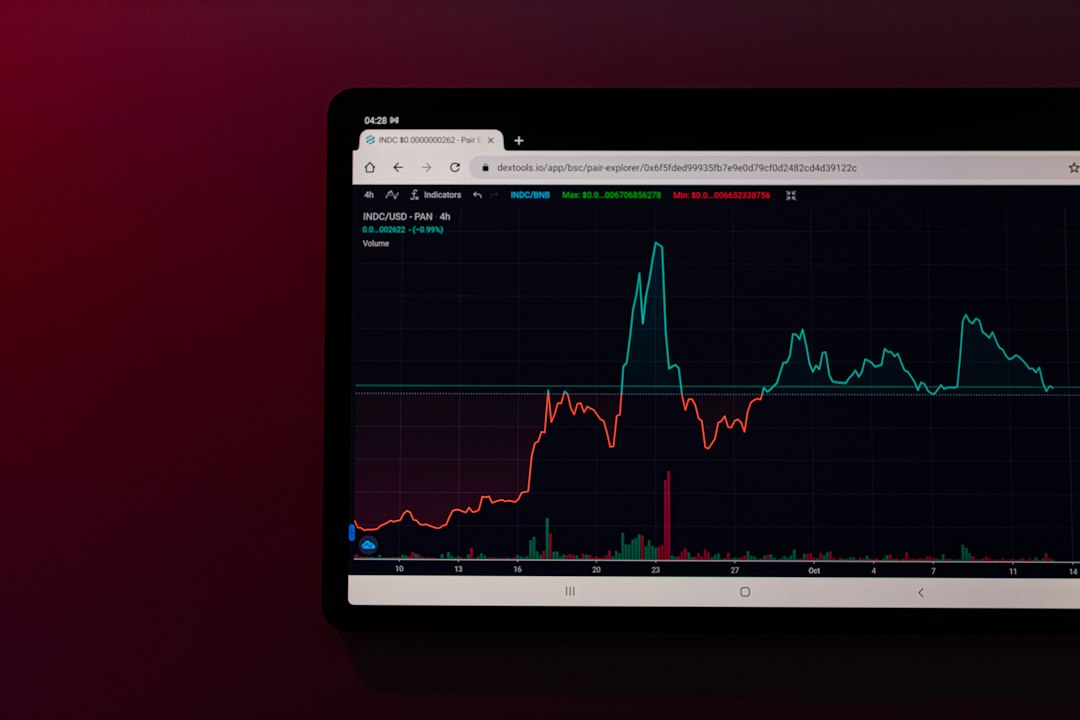
4. NetLimiter: best for bandwidth control
NetLimiter helps you control how much bandwidth each app can use. This is useful if game updates, cloud backups, launchers, or streaming apps keep stealing capacity at the worst time.
For example, you can limit a game launcher to 2 MB/s while keeping voice chat and the game itself responsive. That can be the difference between a playable 45 ms match and a stuttering 180 ms mess.
Best for: shared homes, streamers, players on slower connections, and anyone tired of background apps causing lag.
Weak point: rules need setup. It drives me crazy that some launchers change processes after updates, so an old rule may stop catching them. Check your rules after major client updates.
Which tool should you choose?
- Choose Wireshark if you need deep technical evidence.
- Choose GlassWire if you want simple app and connection visibility.
- Choose PingPlotter if you need to prove packet loss or routing issues.
- Choose NetLimiter if bandwidth control is your main problem.
For most players, the best pair is GlassWire and PingPlotter. One shows what apps are doing. The other shows how the route behaves. Together, they answer most gaming network questions without crossing privacy lines.
Safe troubleshooting workflow
- Start with PingPlotter. Run a 10 to 15 minute test while the issue happens.
- Check GlassWire. Look for downloads, sync tools, launchers, or browser traffic during spikes.
- Use NetLimiter. Cap noisy apps during matches or streams.
- Use Wireshark only when needed. Save it for deeper checks or support cases.
Keep the focus on your own devices and your own service quality. That keeps troubleshooting clean, useful, and safer. Lanc may look tempting if you want quick connection data, but these four tools give better answers and fewer problems.