


Maintaining privacy while using location-based social platforms is a legitimate concern, especially on apps designed for real-time interaction like Sniffies. Whether you are exploring casually, traveling, or simply value discretion in your personal life, understanding how to properly use Discreet Mode can significantly improve your experience. This guide provides a clear, step-by-step explanation of how to activate and manage Discreet Mode on Sniffies, along with practical advice for maximizing your privacy.
TLDR: Discreet Mode on Sniffies hides or limits your public visibility on the map and reduces the amount of identifying information others can immediately see. To activate it, log into your account, navigate to settings, enable Discreet Mode, and customize visibility options. You can further enhance privacy by adjusting profile visibility, location sharing, and notifications. Always review your settings regularly to ensure they match your comfort level.
Understanding What Discreet Mode Does
Before enabling Discreet Mode, it is important to understand what it actually changes. Sniffies operates primarily as a map-based, real-time browsing platform, allowing users to see nearby profiles and activity. Discreet Mode modifies how your profile appears to others and how much location detail is visible.
Depending on updates and subscription tier, Discreet Mode may allow you to:
- Hide your exact location on the map
- Browse profiles without appearing as active
- Limit who can view your profile
- Mask your profile name or photo
- Control read receipts and activity indicators
These features are especially useful for professionals, people in small communities, travelers in unfamiliar areas, or anyone who prefers a lower visibility presence while browsing.
Step 1: Log Into Your Sniffies Account
Begin by logging into your Sniffies account through your web browser. Sniffies is primarily browser-based, so ensure you are using a secure device and private internet connection if discretion is a priority.
If you share your device with others, consider:
- Using private or incognito browsing mode
- Disabling autofill for usernames and passwords
- Clearing history after each session
This foundational step is often overlooked, but device-level privacy reinforces everything Discreet Mode is designed to accomplish.
Step 2: Access Account Settings
Once logged in:
- Click on your profile icon.
- Open the dropdown menu.
- Select Settings or Privacy Settings.
Inside the settings panel, you will find various customization options. Discreet Mode is typically located within the privacy or visibility section.
If you are using a premium version, additional privacy controls may appear that are not available to free users.
Step 3: Enable Discreet Mode
Locate the toggle or checkbox labeled Discreet Mode. Activate it by switching it on. Once enabled, you may notice immediate changes such as:
- Your profile no longer appearing prominently on the map
- A reduction in unsolicited messages
- Limited exposure of your exact GPS location
Some versions may blur your location within a surrounding area rather than display a precise pin point.
Image not found in postmetaStep 4: Adjust Location Visibility Settings
Discreet Mode often works alongside granular location controls. You should configure these manually for maximum effectiveness.
Look for options such as:
- Approximate Location Only
- Hide Distance
- Ghost Mode
- Invisible Browsing
Select the setting that aligns with your needs. For example:
- If you only want casual browsing, choose invisible or ghost mode.
- If you still want to be discovered but not pinpointed, choose approximate location.
- If privacy is critical, disable visibility entirely.
Keep in mind that completely hiding your location may reduce inbound message volume because users cannot see that you are nearby.
Step 5: Limit Profile Information
Even with Discreet Mode activated, your profile information matters. Strong discretion requires thoughtful profile design.
Review your:
- Profile photo
- Display name
- Bio details
- Social media references
- Work or neighborhood clues
Best practices for discreet profiles include:
- Using non-identifiable photos
- Avoiding face pictures if anonymity is important
- Removing workplace or routine location references
- Using a neutral username unrelated to your real name
Remember that Discreet Mode controls technology-based visibility, but personal details can still reveal identity.
Step 6: Manage Notification Settings
Privacy is not limited to what others see on the app. Notifications can also expose usage.
To prevent accidental exposure:
- Open your device’s notification settings.
- Disable pop-up previews for Sniffies.
- Turn off lock-screen notifications.
- Silence sound alerts during sensitive hours.
If discretion in public spaces or at work is important, these measures are essential.
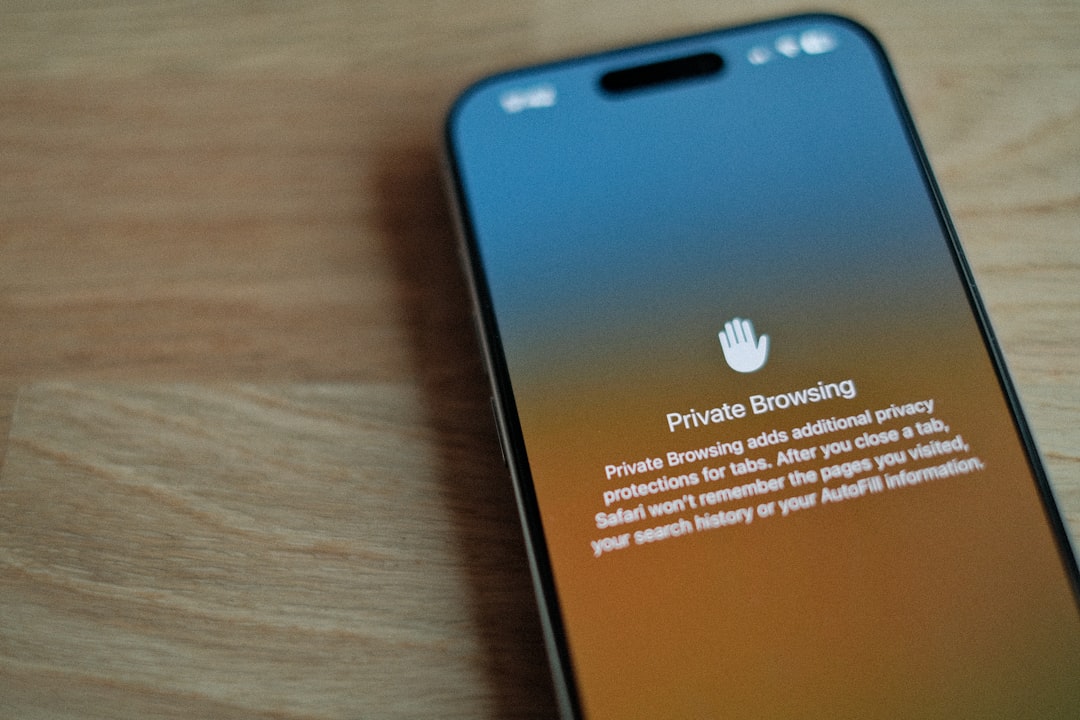
Step 7: Use Private Browsing Techniques
For users who want an additional layer of control beyond Discreet Mode, combine app-level settings with browser techniques.
Consider the following:
- Opening Sniffies in incognito mode
- Using a secondary browser dedicated only to private use
- Clearing cookies regularly
- Disabling browser location history
While Discreet Mode reduces map visibility, browser storage and GPS caching can sometimes retain location information on your device. Regular cleanup strengthens your discretion.
Common Mistakes to Avoid
Many users assume turning on Discreet Mode guarantees full anonymity. This is not always the case.
Avoid these common errors:
- Leaving precise location sharing enabled
- Keeping identifiable photos visible
- Forgetting to adjust distance display settings
- Using the same username across platforms
- Allowing message previews on shared devices
Discretion is most effective when layered. Think of it as combining digital privacy tools with smart personal decisions.
How to Confirm Discreet Mode Is Working
After setting up Discreet Mode:
- Log out and log back in to refresh the session.
- Check your profile appearance from a secondary account if possible.
- Verify that your location is approximated or hidden as expected.
You may also ask a trusted friend to confirm how your profile appears on their map. This provides practical reassurance.
When to Use Discreet Mode
Discreet Mode is particularly helpful in these scenarios:
- Traveling in unfamiliar cities
- Living in small communities
- Visiting areas near work or family
- Exploring privately for the first time
- Taking a more observational approach to browsing
Some users choose to keep Discreet Mode permanently enabled, while others activate it only situationally.
Balancing Privacy and Engagement
There is an important trade-off to understand. The more private your settings, the lower your visibility to others. Reduced visibility may mean:
- Fewer inbound messages
- Less spontaneous interaction
- More effort required to initiate contact
This is not a flaw but a design balance. Sniffies revolves around real-time proximity. By limiting exposure, you also limit discovery. The key is adjusting your comfort level according to your environment and goals.
Review Settings Regularly
Platform features evolve frequently. It is wise to recheck your privacy and Discreet Mode settings every few months.
Also review after:
- App updates
- Device changes
- Subscription upgrades
- Travel to new locations
Small interface changes can sometimes reset preferences or introduce new options worth enabling.
Final Thoughts
Using Discreet Mode on Sniffies is not merely about hiding; it is about controlling your digital presence in a way that aligns with your comfort level. By enabling Discreet Mode, adjusting location visibility, refining profile information, and managing notifications, you create a safer and more controlled experience.
Privacy online is rarely achieved through a single toggle switch. It requires intention, periodic review, and responsible behavior. When configured thoughtfully, Discreet Mode becomes a powerful tool that allows you to explore confidently while maintaining discretion.