


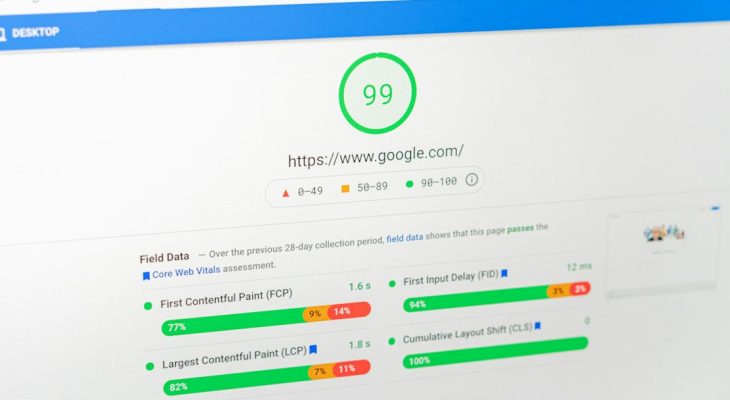
Use EZGIF when you need real control over GIF size; use Compressor.io when you want a quick one-click shrink with almost no setup. That is the practical answer. GIFs are often huge for what they do, and that hurts loading speed fast. Google has reported that the probability of a mobile visitor leaving rises by 32% when page load time goes from 1 second to 3 seconds [source: Google].
TLDR: EZGIF is better for people who want to resize, crop, reduce frames, lower colors, and preview compression settings before saving. Compressor.io is better for quick compression when you do not want to think about settings. For example, a 9 MB product demo GIF can often be cut to 3–5 MB by resizing it and removing every third frame in EZGIF, while Compressor.io may reduce it in seconds with fewer choices. If your landing page has three GIFs, cutting each from 8 MB to 4 MB removes 12 MB from the page, which can be the difference between a smooth visit and a rage click away.
Why GIF Optimization Matters
GIFs are fun, clear, and easy to share. They are also wildly inefficient. A short animation that looks simple may contain dozens or hundreds of frames. Each frame adds weight. Add large dimensions, too many colors, and long playback loops, and the file grows fast.
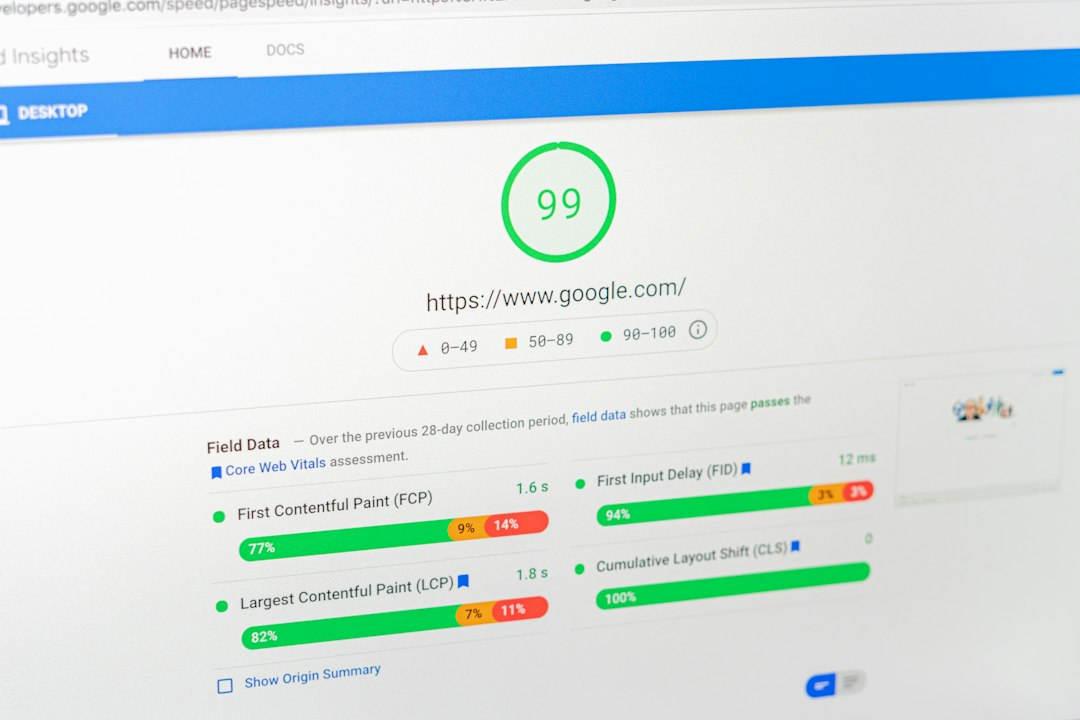
That hurts more than page speed scores. It affects real people. Someone on a weak mobile signal may wait several seconds just to see a looping banner. Someone using limited data may leave before the page finishes. Search engines also care about performance, so bloated GIFs can chip away at visibility.
The good news is simple: most GIFs can be smaller without looking much worse. The trick is choosing the right tool.
EZGIF: Best for Manual Control
EZGIF is a browser-based tool built around animated GIF editing. It looks plain. Honestly, it feels like the interface was designed years ago and never invited to a style meeting. Still, it works. More than that, it gives you the controls that matter.
With EZGIF, you can:
- Resize a GIF to smaller width and height.
- Crop empty or useless areas.
- Reduce colors to shrink file size.
- Use lossy compression for stronger reductions.
- Remove frames to lower total animation data.
- Change speed or frame delay.
- Convert GIFs to WebP, MP4, or other formats.
This is why EZGIF is usually the better choice for site owners, marketers, bloggers, and developers who actually care about the final result. You can make small adjustments, preview the output, compare quality, and try again.
The annoying part? Expect to waste time on trial and error. A lossy setting of 30 may look fine on one GIF and awful on another. Reducing colors to 64 may work for a screen recording, but it can ruin gradients or skin tones. EZGIF gives you power, but you have to babysit it.
Compressor.io: Best for Fast One-Click Compression
Compressor.io is cleaner and easier. Upload the GIF, choose available compression options, and download the result. It feels modern and less fussy. If EZGIF is a workshop full of knobs and tools, Compressor.io is a single button labeled “make this smaller.”
That simplicity is the appeal. You do not need to understand frame rates, color palettes, dithering, or lossy settings. For teams that only need to shrink a few visual assets before publishing, Compressor.io can save time.
Its weak spot is control. If the output looks bad, your options may be limited. If the file is still too large, you may need another tool anyway. For stubborn GIFs, simple compression is often not enough. You may need to resize the image, cut frames, shorten the loop, or convert the animation to a better format.
EZGIF vs. Compressor.io: Quick Comparison
| Feature | EZGIF | Compressor.io |
|---|---|---|
| Ease of use | Moderate | Very easy |
| Compression control | High | Limited |
| Best for | Detailed GIF editing | Fast compression |
| Preview options | Strong | Basic |
| Learning curve | Higher | Lower |
If you only need a smaller file and do not care how it gets there, try Compressor.io first. If the result is still heavy or ugly, move to EZGIF. That two-step workflow is often the fastest path.
Image not found in postmetaHow to Optimize a GIF in EZGIF
Start with the biggest wins. Do not jump straight to heavy compression. Shrink the unnecessary parts first.
- Upload your GIF to EZGIF.
- Resize it to the largest size you truly need. If it displays at 500 pixels wide, do not upload a 1200 pixel GIF.
- Crop wasted space around the subject.
- Remove extra frames if the animation still looks smooth.
- Reduce colors from 256 to 128 or 64 if the image allows it.
- Apply lossy compression gently. Start low, then increase if needed.
- Preview before saving and compare the output with the original.
For screen recordings, frame removal works especially well. A tutorial GIF often does not need every frame. Removing 20–30% of frames can cut file size while keeping the action understandable. For animated stickers or memes, color reduction may work better.
How to Optimize a GIF in Compressor.io
Compressor.io is better when speed matters more than fine tuning.
- Upload the GIF.
- Select the compression type offered by the tool.
- Wait for processing.
- Download the compressed file.
- Check the result on desktop and mobile.
Do not skip the final check. A compressed GIF may look acceptable on your laptop but rough on a small phone screen with high brightness. Watch for banding, flicker, muddy colors, and unreadable text.
Best Practices for Faster GIF Loading
- Keep GIFs short. Aim for a few seconds when possible.
- Use smaller dimensions. Large animated images get heavy fast.
- Limit colors. Fewer colors usually mean lower file size.
- Remove duplicate frames. Many GIFs repeat near-identical frames.
- Avoid text-heavy GIFs. Compression can make text blurry.
- Lazy load below-the-fold GIFs. Do not load every animation at once.
- Consider MP4 or WebP. These formats often beat GIF for animation size.
The format choice matters. A GIF is not always the best answer. If the animation does not need transparency and can play like a short video, MP4 is often much smaller. WebP can also preserve animation with better compression. EZGIF can help with those conversions, which gives it another edge over a basic compressor.
Which Tool Should You Choose?
Choose EZGIF if your GIF is important to the page. Use it for hero sections, product demos, tutorials, and any animation near the top of a page. You get more control, and that control can save megabytes.
Choose Compressor.io if you have a simple GIF and want a quick result. It is ideal for casual blog images, social previews, and small animations that are already close to the right size.
The smartest workflow is not either-or. Try Compressor.io for speed. If the output is not good enough, use EZGIF to resize, trim, reduce frames, and convert formats. The best GIF is not just the smallest one. It is the smallest one that still does its job without making the page feel slow.