


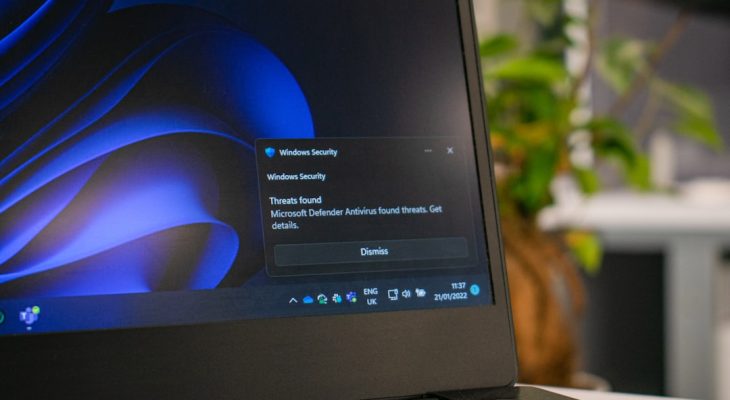
Few things are more annoying than constant pop-ups interrupting your work, gaming session, or online shopping. If you’re seeing frequent McAfee notifications, renewal reminders, or security alerts, you’re not alone. While some pop-ups are legitimate security warnings, others can feel excessive—or may not even be from McAfee at all. The good news? You can control, reduce, or completely eliminate them with the right steps.
TL;DR: McAfee pop-ups can be stopped by adjusting your notification settings, disabling browser extensions, turning off marketing alerts, or uninstalling the software entirely. Make sure the pop-ups are actually from McAfee and not fake scam alerts. Review your browser permissions and system settings for additional hidden triggers. With a few targeted changes, you can enjoy a cleaner, interruption-free experience.
Why Am I Getting So Many McAfee Pop-Ups?
Before you start disabling things, it’s important to understand why you’re seeing these notifications. McAfee generates pop-ups for several reasons:
- Security alerts (threats detected, scans completed)
- Subscription renewal reminders
- Promotional offers and upgrades
- Browser security warnings
- Scam pop-ups pretending to be McAfee
Not all pop-ups are equal. Some help protect your device. Others are marketing messages. And some are completely fake alerts generated by malicious websites.
Step 1: Make Sure the Pop-Ups Are Really from McAfee
A surprising number of “McAfee pop-ups” are actually browser-based scam alerts. These usually:
- Appear inside your browser window
- Claim your device is infected
- Show a fake countdown timer
- Urge you to click immediately
Real McAfee notifications:
- Appear as system notifications (usually bottom-right corner on Windows)
- Come directly from installed software
- Do not demand immediate payment through random links
If the pop-up appears in a browser tab, it’s likely a scam. Simply close the tab—don’t click inside the message.
Step 2: Turn Off McAfee Notifications (Windows)
If the notifications are legitimate but too frequent, you can manage them directly in McAfee settings.
How to Disable Alerts:
- Open McAfee from your system tray or start menu.
- Click on Settings.
- Select General Settings and Alerts.
- Open the Informational Alerts section.
- Turn off alerts you don’t want to receive.
You can also adjust:
- Marketing notifications
- Subscription reminders
- Automatic scan alerts
This keeps important security warnings active while silencing unnecessary interruptions.
Step 3: Disable McAfee Browser Extensions
McAfee often installs a browser extension like WebAdvisor, which can generate additional pop-ups.
Image not found in postmetaIn Google Chrome:
- Click the three-dot menu (top right).
- Select Extensions → Manage Extensions.
- Find McAfee WebAdvisor.
- Toggle it off or remove it.
In Microsoft Edge:
- Click the three-dot menu.
- Select Extensions.
- Disable or remove the McAfee add-on.
If browser pop-ups stop after disabling the extension, you’ve found the culprit.
Step 4: Stop Browser Notification Permissions
Sometimes pop-ups aren’t from McAfee software but from websites you accidentally allowed to send notifications.
To Check in Chrome:
- Open Settings.
- Click Privacy and Security.
- Select Site Settings.
- Click Notifications.
- Remove suspicious sites from the “Allowed” list.
If you see unfamiliar websites there, remove them immediately.
Step 5: Adjust Windows Notification Settings
You can control alerts at the system level as well.
In Windows:
- Open Settings.
- Click System.
- Select Notifications.
- Find McAfee in the app list.
- Toggle notifications off.
This won’t disable protection—it simply prevents pop-up alerts from appearing on your screen.
Step 6: Uninstall McAfee (If You Don’t Need It)
If you no longer want McAfee on your system, you can remove it entirely.
Important: Make sure you have another security solution installed before uninstalling any antivirus software.

To Uninstall McAfee:
- Open Control Panel.
- Click Programs and Features.
- Select McAfee.
- Click Uninstall.
For stubborn installations, you may need the official McAfee removal tool.
Common Causes and Fixes Comparison
| Cause | Type of Pop-Up | Best Solution | Difficulty Level |
|---|---|---|---|
| Security notifications | System alerts | Adjust McAfee alert settings | Easy |
| Subscription reminders | Renewal pop-ups | Turn off marketing alerts | Easy |
| Browser extension alerts | Website safety warnings | Disable WebAdvisor extension | Easy |
| Website push notifications | Browser pop-ups | Remove site notification permissions | Medium |
| Scam pop-ups | Fake infection warnings | Close browser tab and scan device | Easy |
| Too many alerts overall | All types | Disable McAfee in Windows notifications | Easy |
How to Tell the Difference Between Real and Fake McAfee Alerts
Knowing what’s real can save you from scams.
Real McAfee alerts:
- Come from installed software
- Appear as standard system notifications
- Do not lock your browser
- Do not demand immediate credit card payment
Fake alerts:
- Flash aggressively in your browser
- Include countdown timers
- Use phrases like “Your PC is infected right now!”
- Redirect you to unknown payment pages
If in doubt, open your McAfee application directly instead of clicking the pop-up.
Bonus: Reduce Future Annoyances
To prevent pop-ups from returning:
- Keep your browser updated
- Install an ad blocker (if browser-based pop-ups are frequent)
- Avoid clicking Allow on random websites
- Review installed extensions regularly
- Run periodic malware scans
Prevention reduces the chance of fake “McAfee” notifications hijacking your screen again.
Should You Completely Disable Antivirus Notifications?
It depends on your needs.
If you’re comfortable managing security manually and running scans yourself, minimizing alerts can make your experience smoother. But if you’re less technically inclined, those notifications can act as valuable reminders.
The best approach is balance: keep critical threat alerts on, while disabling promotional or informational messages.
Final Thoughts
McAfee pop-ups can range from helpful to frustrating, depending on how they’re configured. Fortunately, you’re not stuck with constant interruptions. Whether you adjust in-app notification settings, disable browser extensions, remove suspicious site permissions, or uninstall the program entirely, you have full control.
Most importantly, always verify whether a pop-up is truly from McAfee or a scam in disguise. A few minutes of investigation can protect both your screen space and your personal data.
With the right tweaks, you can keep your protection strong—and your desktop blissfully quiet.