


Use Adobe Lightroom for editing the portrait itself, and use Canva only after the photo is finished. Lightroom is built for exposure, color, skin tone, masking, and file control; Canva is built for layouts, social posts, thumbnails, and client-friendly graphics. Adobe lists Lightroom features such as masking, presets, healing, and cloud editing, which are the tools beginners need most for clean portrait work [source: Adobe].
TLDR: If you are new to portrait photography, start in Lightroom to fix light, color, skin tones, and background distractions. Then move the final JPEG into Canva if you need an Instagram post, portfolio slide, or flyer. For example, a beginner who shoots 100 portraits may select 20 keepers, edit them in Lightroom, and make 5 social media designs in Canva. That split saves time and keeps the actual photo quality higher.
Lightroom vs. Canva: the honest difference
Lightroom is a photo editor. Canva is a design editor that also has basic photo tools. That difference matters a lot for portraits.
Portrait editing is not only about making a face brighter. You need to control highlights on the forehead, shadows under the eyes, color in the skin, sharpness around the eyes, and blur in the background. Lightroom gives you fine control over those areas. Canva can make quick changes, but it does not give the same level of precision.
Honestly, it feels like Canva gets tempting because it is simple. You upload a photo, add text, pick a template, and you are done. But when the skin turns too orange or the eyes look dull, the limits show up fast. Lightroom is less playful, but it is more reliable for serious portrait work.
When beginners should use Lightroom
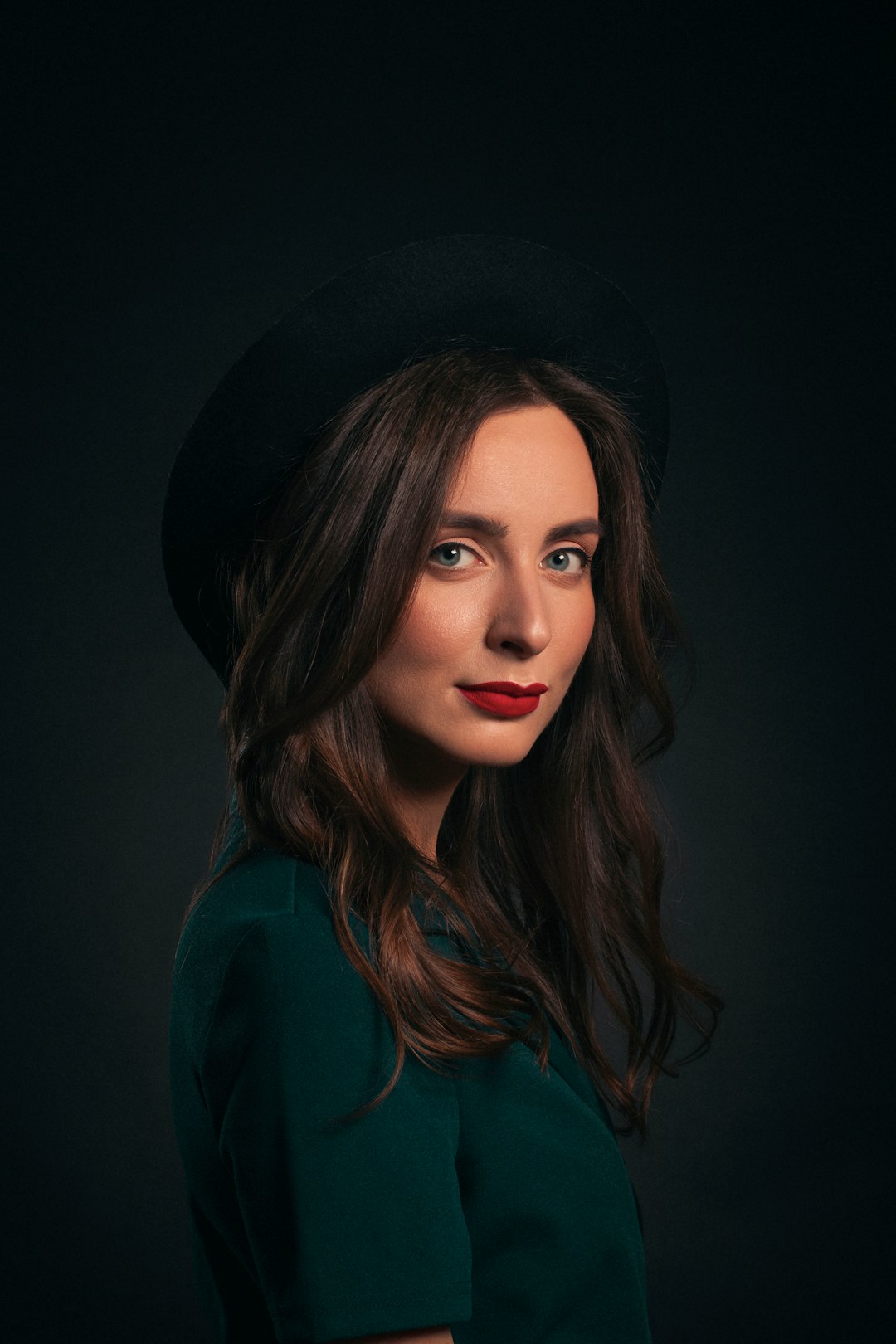
Use Lightroom when the photo itself needs improvement. This should be your first stop after a portrait session.
- Exposure correction: Fix faces that are too dark or too bright.
- White balance: Remove strange yellow, green, or blue color casts.
- Skin tone control: Adjust orange, red, and yellow tones with care.
- Eye enhancement: Add gentle sharpness and brightness where needed.
- Background cleanup: Remove small distractions with healing tools.
- Batch editing: Apply the same look across a full set of portraits.
For beginners, batch editing is a major win. If you shoot 80 images in the same light, you can edit one image and sync the settings to the rest. You still need to check each photo, but this can cut editing time sharply. Instead of spending five minutes on every image, you may spend one minute on each after the first edit.
The catch is that Lightroom has a learning curve. The sliders look simple, but they can ruin a portrait quickly. Too much clarity makes skin look rough. Too much saturation makes skin look fake. Too much sharpening makes pores and stray hairs stand out. Small changes usually work best.
When beginners should use Canva
Use Canva when the photo is already edited and ready to share. Canva is useful for presentation, not serious correction.
- Instagram posts: Add borders, text, or a clean grid layout.
- Client previews: Build simple contact sheets or mood boards.
- Portfolio pages: Combine several finished portraits in one design.
- Event graphics: Create flyers, thank you cards, or pricing sheets.
- Before and after posts: Show editing progress in a clear format.
Canva is fast. That is its strength. A beginner can create a polished post in minutes. Still, do not rely on Canva to fix a weak portrait. Its auto-enhance tools can help with basic brightness and contrast, but they do not replace proper color work.
It drives me crazy that a photo can look decent in Canva’s editor, then slightly off after export because of compression or size choices. Check your export settings. Use PNG for graphics with text. Use high-quality JPG for photo-heavy posts. Avoid stretching portraits to fit templates, because faces can look distorted very quickly.

Portrait photography tips before editing
Good editing starts with good shooting. Lightroom cannot fully save harsh light, missed focus, or awkward posing. Canva definitely cannot.
- Focus on the eyes. In most portraits, sharp eyes matter more than sharp clothing or background detail.
- Use soft light. Window light, open shade, and cloudy skies are beginner-friendly.
- Watch the background. Remove bright signs, poles, clutter, and objects near the head.
- Keep skin texture natural. Real skin has texture. Do not erase it completely.
- Shoot in RAW if possible. RAW files give Lightroom more data for exposure and color changes.
If your camera or phone supports RAW, use it for serious portraits. RAW files handle highlights and shadows better than standard JPEG files. That helps when a face is a little underexposed or when sunlight hits one side too strongly.
A simple beginner workflow
Here is a clean workflow that beginners can follow without overthinking every step.
- Import photos into Lightroom. Reject blurry shots first.
- Pick the strongest images. Do not edit every frame from the session.
- Correct exposure and white balance. Make the face look natural first.
- Adjust contrast and color. Keep skin tones believable.
- Use masks. Brighten eyes, soften harsh shadows, and guide attention to the face.
- Remove distractions. Clean small spots, lint, or background clutter.
- Export finished images. Save full-size files and smaller sharing versions.
- Open Canva only for layout work. Add text, frames, or branding after editing.
This workflow keeps each tool in its lane. Lightroom handles the photo. Canva handles the presentation.
Common Lightroom mistakes in beginner portraits
New editors often push sliders too far. Portraits need restraint.
- Too much smoothing: Skin starts to look plastic.
- Too much clarity: Faces look older and harsher.
- Too much warmth: Skin turns orange.
- Too much vignette: The edit becomes obvious and dated.
- Over-bright eyes: The subject starts to look unnatural.
A safe rule is to make an adjustment, then reduce it by 20%. This keeps edits cleaner. You can also step away for a few minutes, then return with fresh eyes. Bad color is easier to see after a break.
Common Canva mistakes with portraits
Canva mistakes are different. They are usually about layout and export quality.
- Using busy templates: The design competes with the face.
- Adding too much text: Portraits lose emotional impact.
- Cropping too tight: Hands, hair, or shoulders get cut awkwardly.
- Exporting too small: Images look soft on screens.
- Using random filters: Skin tones shift from one post to the next.
Keep Canva designs simple. Use white space. Choose one or two fonts. Let the portrait do the main work.

Which one should you learn first?
Learn Lightroom first if your goal is better photography. It teaches you how light, color, contrast, and detail affect a portrait. Those skills carry into every shoot.
Learn Canva first only if your goal is quick content creation. For example, a small business owner may need headshots for staff posts, flyers, and announcements. In that case, Canva is helpful. Still, the original portraits should be edited properly before they go into a design.
For most beginners, the best answer is not Lightroom or Canva. It is Lightroom, then Canva. Edit with care. Export clean files. Then design around them.
Final recommendation
If you want portraits that look natural, polished, and professional, make Lightroom your main editing tool. Use Canva as a finishing tool for sharing and marketing. This approach avoids overprocessed skin, weak color, and low-quality exports.
Portrait photography rewards patience. Strong light, sharp focus, careful editing, and simple design will beat trendy filters almost every time. Start with those basics, and your portraits will improve faster than any preset can promise.