

Echo is one of the most frustrating problems content creators face when recording with a Rode Wireless microphone. Whether you are filming interviews, YouTube videos, podcasts, or corporate presentations, unwanted echo can instantly make your production sound unprofessional. Fortunately, echo is rarely caused by a defective microphone. In most cases, it stems from environmental factors, incorrect settings, or monitoring issues that can be corrected with careful troubleshooting.
TLDR: Echo when recording with a Rode Wireless mic is usually caused by room acoustics, incorrect gain settings, monitoring feedback, dual audio routing, or post-production effects. Fixing it often involves adjusting mic placement, lowering input gain, disabling duplicate audio paths, treating your recording space, or fine-tuning editing software settings. Addressing these five areas systematically will eliminate echo in most setups. Proper preparation and monitoring are key to clean, professional audio.
Below are the top five fixes you should implement to eliminate echo and restore clarity to your recordings.
1. Fix Room Acoustics and Mic Placement
The most common cause of echo is not the microphone itself—it is the room. Hard surfaces such as walls, glass windows, tile floors, and ceilings reflect sound waves. When these reflections bounce back into the microphone milliseconds after the original sound, they create what we perceive as echo or reverb.
How to Correct It
- Record in a smaller, furnished room with soft surfaces.
- Add curtains, rugs, sofas, or acoustic foam panels to absorb reflections.
- Avoid recording in kitchens, bathrooms, or empty conference rooms.
- Position the subject away from walls and corners.
- Keep the microphone closer to the speaker’s mouth (about 6–8 inches).
Rode Wireless systems are sensitive and designed to capture natural sound. If the mic is too far from the subject, it will capture more room tone than voice, amplifying reflected sound waves.
Professional Tip: Clap once in your recording space. If you hear a noticeable reverb tail or ringing reflection, the room needs treatment before recording.
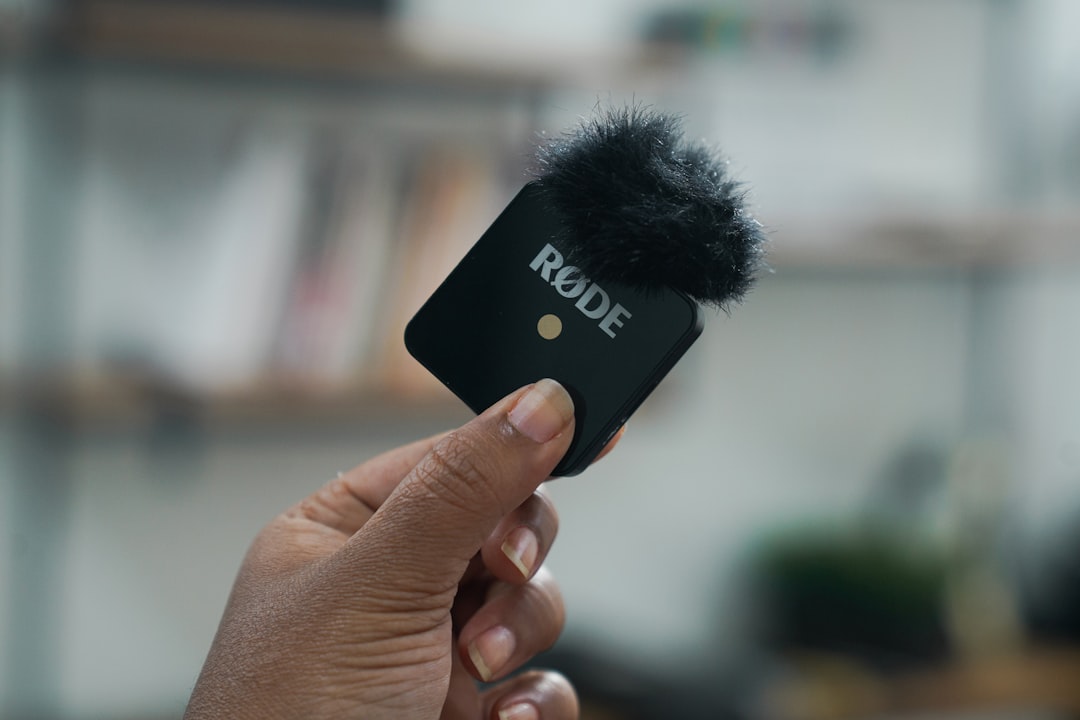
2. Lower Input Gain and Prevent Signal Clipping
Improper gain staging can contribute to echo-like artifacts. If the input gain is set too high—either on the Rode transmitter, receiver, camera, or audio interface—the signal may distort or exaggerate background reflections.
Steps to Resolve Gain Issues
- Check the Rode transmitter gain settings first.
- Ensure the receiver output level matches your camera or recorder input level.
- Monitor audio meters and avoid peaking into the red.
- Use headphones to listen in real time while adjusting levels.
Many echo complaints are actually cases of clipped audio mixed with room reflections. Clean gain staging ensures the microphone captures direct voice clearly, which naturally minimizes perceived echo.
When in doubt, set conservative levels and increase loudness during post-production rather than overdriving the signal during recording.
3. Eliminate Duplicate Audio Paths
If you hear a distinct delayed repetition of your voice rather than room reverb, you may be dealing with dual audio routing. This happens when audio is being recorded or monitored from two sources simultaneously.
For example:
- Your Rode Wireless mic connects to your camera.
- Your camera sends audio to your computer via HDMI.
- Your editing software also records from a built-in or external mic.
When two audio tracks capture similar sound with slight timing differences, the result is a clear echo effect.
How to Fix Duplicate Audio
- Disable your computer’s internal microphone.
- Select only one audio input source in your recording software.
- Mute monitoring from secondary devices.
- Check live stream platforms (e.g., OBS, Zoom) for double audio inputs.
If you are monitoring through speakers rather than headphones, the microphone may also pick up delayed playback audio, creating feedback echo. Always use closed-back headphones during recording sessions.
This issue is especially common in hybrid setups involving cameras, capture cards, and streaming software.
4. Adjust Post-Production Reverb and Delay Effects
Sometimes echo is introduced after recording, not during it. Editing software often includes default audio processing presets that add reverb, delay, or spatial enhancement effects.
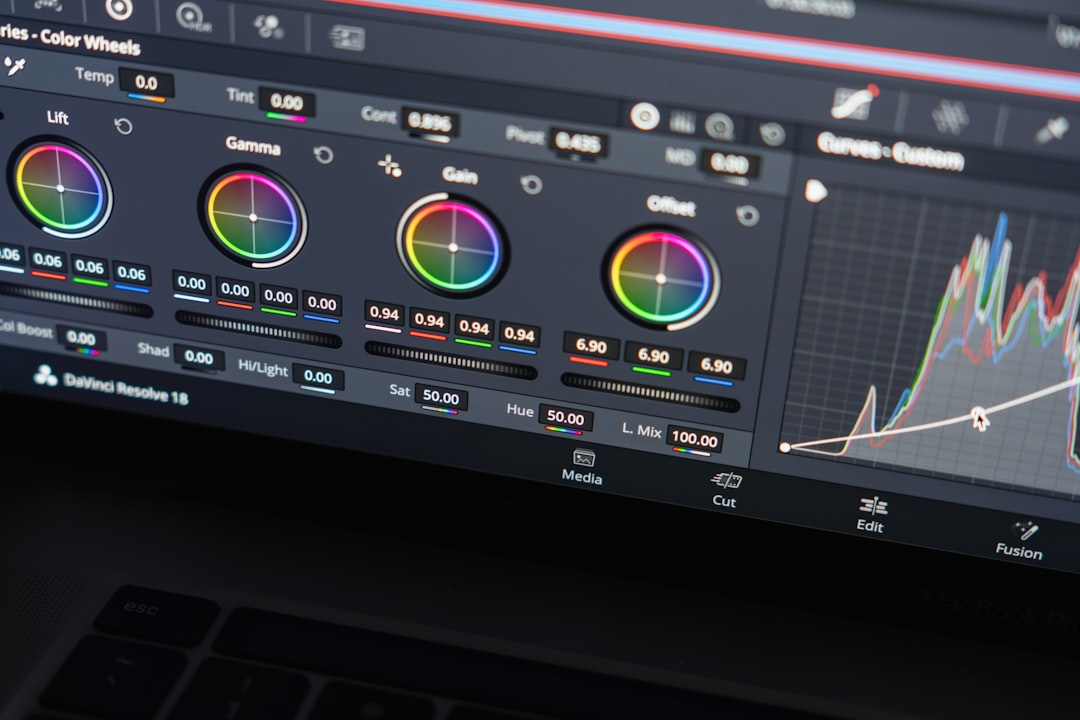
If you recently applied:
- Reverb filters
- Room simulation effects
- Noise reduction plugins
- Audio enhancement presets
—one of these may be emphasizing reflections or creating artificial echo.
Corrective Actions
- Inspect your effects rack for active reverb or delay plugins.
- Disable room simulation or preset vocal enhancements.
- Use mild EQ instead of reverb to improve vocal presence.
- Apply subtle compression to focus the vocal track.
In many cases, creators try to “improve” slightly dull audio by adding enhancement effects, only to unintentionally amplify room noise. Clean, dry audio from the start reduces the need for aggressive post-processing.
5. Use Directional Lav Placement and Shielding
The Rode Wireless system typically includes an omnidirectional lavalier microphone. While this design captures natural sound, it also picks up environmental reflections more easily than directional microphones.
Improper lav placement can worsen echo significantly.
Best Placement Practices
- Attach the lav mic to the center of the chest, 6–8 inches below the chin.
- Keep it clear of loose clothing that may cause reflections.
- Avoid placing it near reflective surfaces like badge holders or jewelry.
- Use a small foam windscreen to slightly dampen spatial reflections.
If echo persists, consider switching to a directional lavalier microphone that is compatible with your Rode system. Directional mics focus more on forward sound and reject some room reflections.
For seated interviews, positioning boom microphones slightly closer to the speaker may produce even cleaner results than a lav mic in echo-prone rooms.
Additional Professional Recommendations
If the five primary fixes do not resolve your echo issue, review the following advanced considerations:
- Firmware updates: Ensure your Rode Wireless system firmware is current.
- Check cables: Faulty or improperly seated cables can create unusual artifacts.
- Test external recorders: Record directly into the Rode transmitter (if supported) to isolate system variables.
- Use high-pass filtering: Remove low-frequency room rumble that exaggerates echo perception.
Professional audio troubleshooting follows a principle: isolate one factor at a time. Change only one variable between tests to clearly identify the source of the issue.
Common Misconceptions About Echo
It is important to highlight what echo is not:
- It is rarely caused by defective Rode hardware.
- It is not typically a wireless transmission delay.
- It is not a latency issue in the RF signal.
Wireless systems transmit audio nearly instantaneously. What many interpret as “wireless lag echo” is almost always environmental reflection or digital monitoring duplication.
Final Thoughts
Echo when recording with a Rode Wireless microphone can compromise otherwise excellent content. However, in the vast majority of cases, the issue can be resolved with systematic adjustments. By treating your recording space, setting appropriate gain levels, eliminating duplicate audio routing, reviewing post-production settings, and optimizing lav placement, you can achieve clean, professional audio.
Professional sound does not require expensive studio construction. It requires controlled acoustics, disciplined setup, and careful monitoring. When these fundamentals are respected, Rode Wireless systems deliver reliable, broadcast-quality results.
Before your next recording session, conduct a brief sound test in your environment. Listen critically with headphones. Make minor corrections before you press record. This proactive approach will save hours of editing time and ensure your production maintains the level of quality your audience expects.