

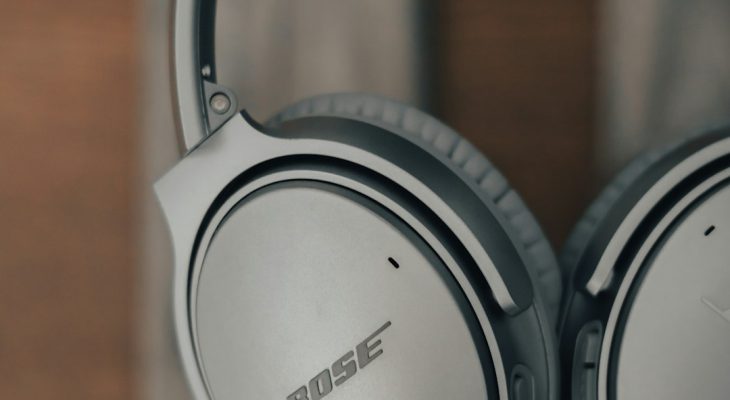
Bose headphones have built a reputation for premium sound, sleek design, and reliable Bluetooth connectivity. But even in 2026, many users still struggle with pairing them quickly—especially when switching between devices or setting up a brand-new pair. The good news? Pairing Bose headphones takes less than three minutes when you know the exact steps. This guide walks you through everything clearly and efficiently, whether you’re connecting to a smartphone, laptop, tablet, or smart TV.
TLDR: Turn on your Bose headphones and enter Bluetooth pairing mode by holding the power or Bluetooth button until the LED flashes blue. Open Bluetooth settings on your device, select your Bose model from the list, and confirm the connection. If you don’t see your headphones, reset Bluetooth or clear old pairings. Once paired, your device will automatically reconnect in the future.
Why Pairing Bose Headphones Is So Fast in 2026
Modern Bose headphones—including the QuietComfort Ultra, Noise Cancelling Headphones 700, and newer 2026 releases—use advanced Bluetooth 5.3 and multipoint connectivity. This means:
- Faster device discovery
- Stronger connection stability
- Simultaneous multi-device pairing
- Automatic reconnection to recently used devices
If you’re upgrading from an older model, you’ll immediately notice quicker pairing times and seamless switching between devices.
Before You Start: 30-Second Checklist
Before diving into the pairing process, quickly confirm the following:
- Your headphones are charged
- Bluetooth is enabled on your device
- Your headphones are not currently connected to another device nearby
- You’re within 3 feet (1 meter) for initial setup
This avoids the most common pairing delays.
Step-By-Step: How To Pair Bose Headphones to a Smartphone (iPhone & Android)
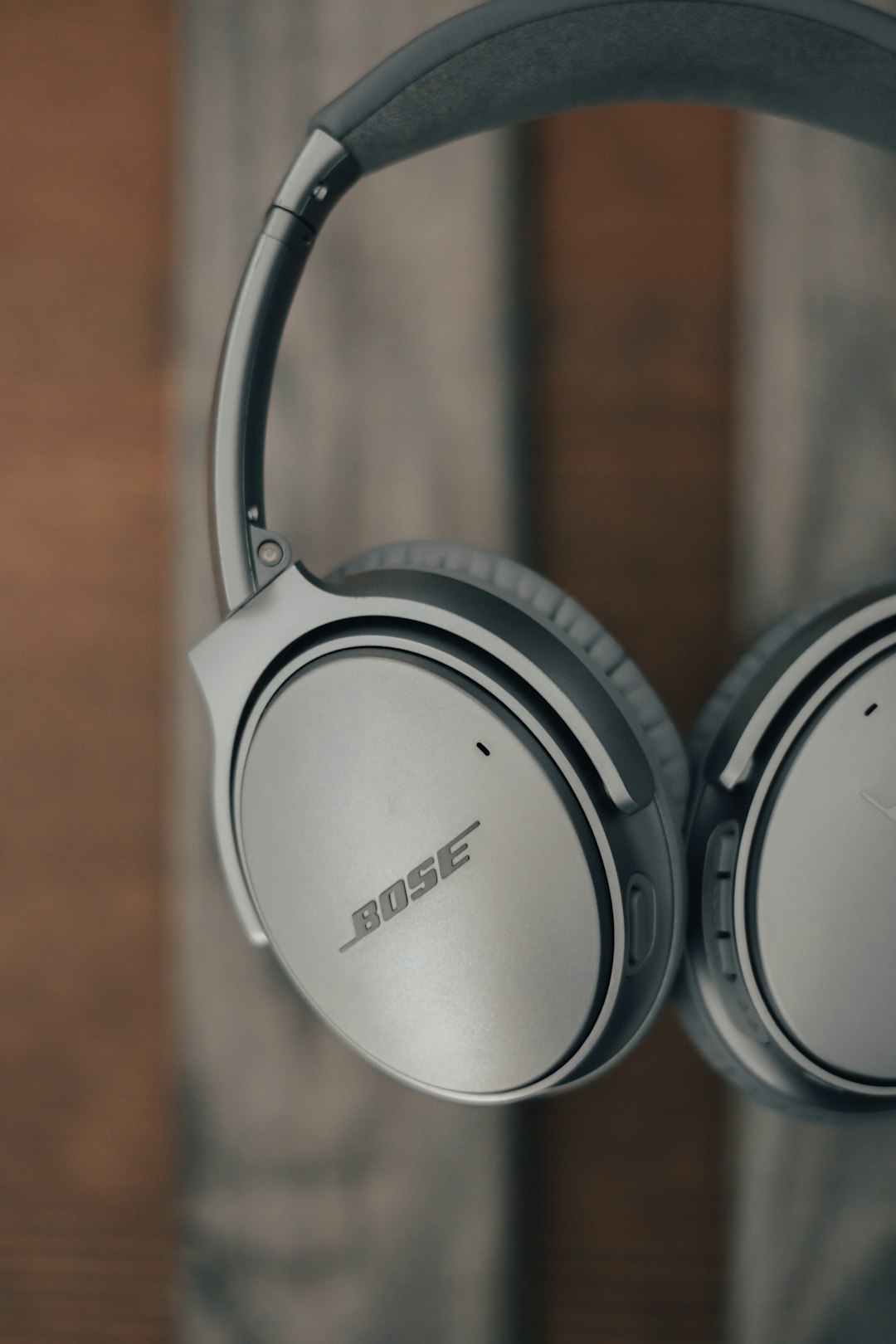
Step 1: Turn On Your Headphones
Slide the power switch to the ON position or press the power button (depending on your model). You’ll hear a startup tone.
Step 2: Enter Pairing Mode
If your headphones are new, they automatically enter pairing mode. If not:
- Press and hold the Bluetooth button or power button for 3–5 seconds
- Wait until you hear “Ready to connect” or see a blinking blue LED
Step 3: Open Bluetooth Settings on Your Phone
On iPhone:
- Go to Settings → Bluetooth
- Make sure Bluetooth is toggled on
On Android:
- Open Settings → Connections → Bluetooth
- Turn it on if needed
Step 4: Select Your Bose Headphones
Your headphones should appear under “Available Devices” with a name like:
- Bose QC Ultra
- Bose 700
- Bose QuietComfort
Tap the name. Within seconds, you’ll hear “Connected.”
Total time: Usually under 60 seconds.
How To Pair Bose Headphones to a Windows Laptop
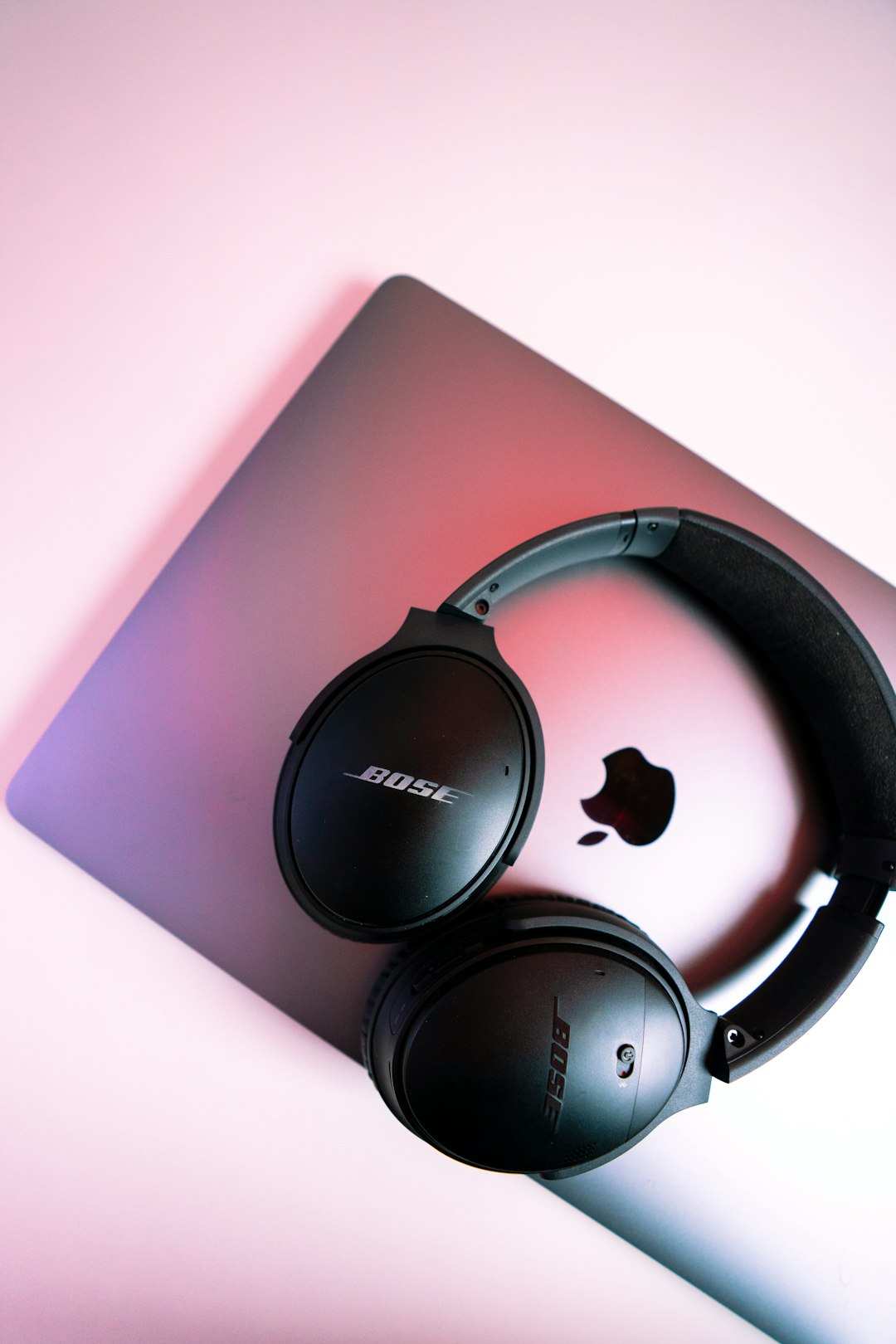
Step 1: Activate Pairing Mode
Turn on your Bose headphones and hold the Bluetooth button until the LED flashes blue.
Step 2: Open Bluetooth Settings in Windows 11/12
- Click the Start menu
- Select Settings
- Go to Bluetooth & Devices
- Click Add Device
Step 3: Choose Bluetooth
Select Bluetooth as the device type. Windows will scan for nearby devices.
Step 4: Select Your Headphones
Click your Bose model from the list. After a brief connection process, it will show “Connected.”
Pro tip: If you don’t get stereo audio, open Sound Settings and set your Bose headphones as the default output device.
How To Pair Bose Headphones to a Mac (macOS 2026)
- Activate pairing mode on your headphones.
- Click the Apple menu.
- Select System Settings.
- Click Bluetooth.
- Find your Bose headphones under nearby devices.
- Click Connect.
MacBooks typically connect in under 30 seconds thanks to updated Bluetooth optimization.
How To Pair Bose Headphones to a Smart TV
Image not found in postmetaMost modern smart TVs (Samsung, LG, Sony, Roku TV, Google TV) now support Bluetooth audio devices.
General Steps:
- Turn on pairing mode on your headphones
- Open your TV’s Settings
- Navigate to Sound → Audio Output → Bluetooth Devices
- Select your Bose headphones when they appear
If audio delay occurs, enable your TV’s Low Latency or Game Mode.
How To Use Bose Multipoint Pairing (2026 Feature)
Many 2026 Bose models support multipoint connectivity, allowing connection to two devices simultaneously.
Example:
- Connected to your laptop for work
- Connected to your phone for calls
When your phone rings, the headphones automatically switch audio. After the call ends, it switches back to your laptop.
How to Activate Multipoint:
- Pair your headphones normally to Device #1
- Leave them on
- Enter pairing mode again
- Connect to Device #2
That’s it. No additional setup required.
Troubleshooting: If Your Bose Headphones Won’t Pair
If pairing takes longer than three minutes, one of these quick fixes usually solves it:
1. Clear the Headphones’ Bluetooth Memory
- Turn off the headphones
- Hold the power button for 10 seconds
- You’ll hear confirmation that the Bluetooth list was cleared
2. Restart Bluetooth on Your Device
Toggle Bluetooth OFF and ON again. Or restart your device.
3. Move Away From Other Devices
Too many active Bluetooth signals nearby can interfere with pairing.
4. Update Firmware Using the Bose App
The Bose Music app (iOS/Android) ensures your headphones have the latest firmware updates for optimal compatibility.
How To Reconnect Bose Headphones Automatically
Once paired once, your Bose headphones remember the device.
To reconnect:
- Turn on your headphones
- Enable Bluetooth on your previously paired device
- They’ll reconnect automatically within seconds
If multiple known devices are nearby, the headphones connect to the two most recently used ones.
Common Questions in 2026
Why Do My Bose Headphones Keep Connecting to the Wrong Device?
They prioritize the two most recent connections. Disable Bluetooth on the unwanted device or remove it from the Bose app list.
Can I Pair Without the Bose App?
Yes. The app is optional. Standard Bluetooth pairing works perfectly without it.
How Long Does Pairing Mode Stay Active?
About 2–5 minutes before timing out. If it times out, simply hold the Bluetooth button again.
Are 2026 Bose Headphones Compatible With Older Devices?
Yes. Bluetooth is backward compatible, though you may lose advanced features like spatial audio or multipoint support on very old hardware.
Fastest 3-Minute Pairing Recap
If you’re in a rush, here’s the fastest proven method:
- Turn on headphones
- Hold Bluetooth button until blue light flashes
- Open device Bluetooth settings
- Select your Bose model
- Confirm connection
That’s it. Simple, reliable, and usually done in under a minute.
Final Thoughts
Pairing Bose headphones in 2026 is easier than ever thanks to improved Bluetooth technology and smarter firmware. Whether you’re connecting to a smartphone, laptop, smart TV, or juggling multiple devices at once, the process follows the same basic principle: activate pairing mode and select the device.
The key difference between users who struggle and those who connect instantly is knowing how to trigger pairing mode and clear old device lists when needed. Once you understand that, setup takes less time than choosing the playlist you’re about to enjoy.
Now that your headphones are paired, all that’s left to do is press play and experience the sound quality Bose is known for.