Few tech issues are as frustrating as a microphone that works for one second and then suddenly stops. Whether it happens during an important meeting, a gaming session, or a voice recording, the interruption can be both confusing and disruptive. This issue can stem from hardware faults, driver conflicts, incorrect settings, or software interference. Understanding the root cause is the key to applying the correct fix.
TLDR: A microphone that works briefly and then stops is usually caused by driver issues, incorrect system settings, loose connections, or conflicting software. Start by checking physical connections, updating or reinstalling drivers, and reviewing sound settings. Disable exclusive mode and background apps that may take control of the mic. If the problem persists, test the microphone on another device to rule out hardware failure.
Below is a comprehensive step-by-step guide on how to diagnose and fix this problem effectively.
1. Check Physical Connections First
The simplest explanation is often the correct one. A loose or damaged cable may allow the microphone to briefly register before disconnecting.
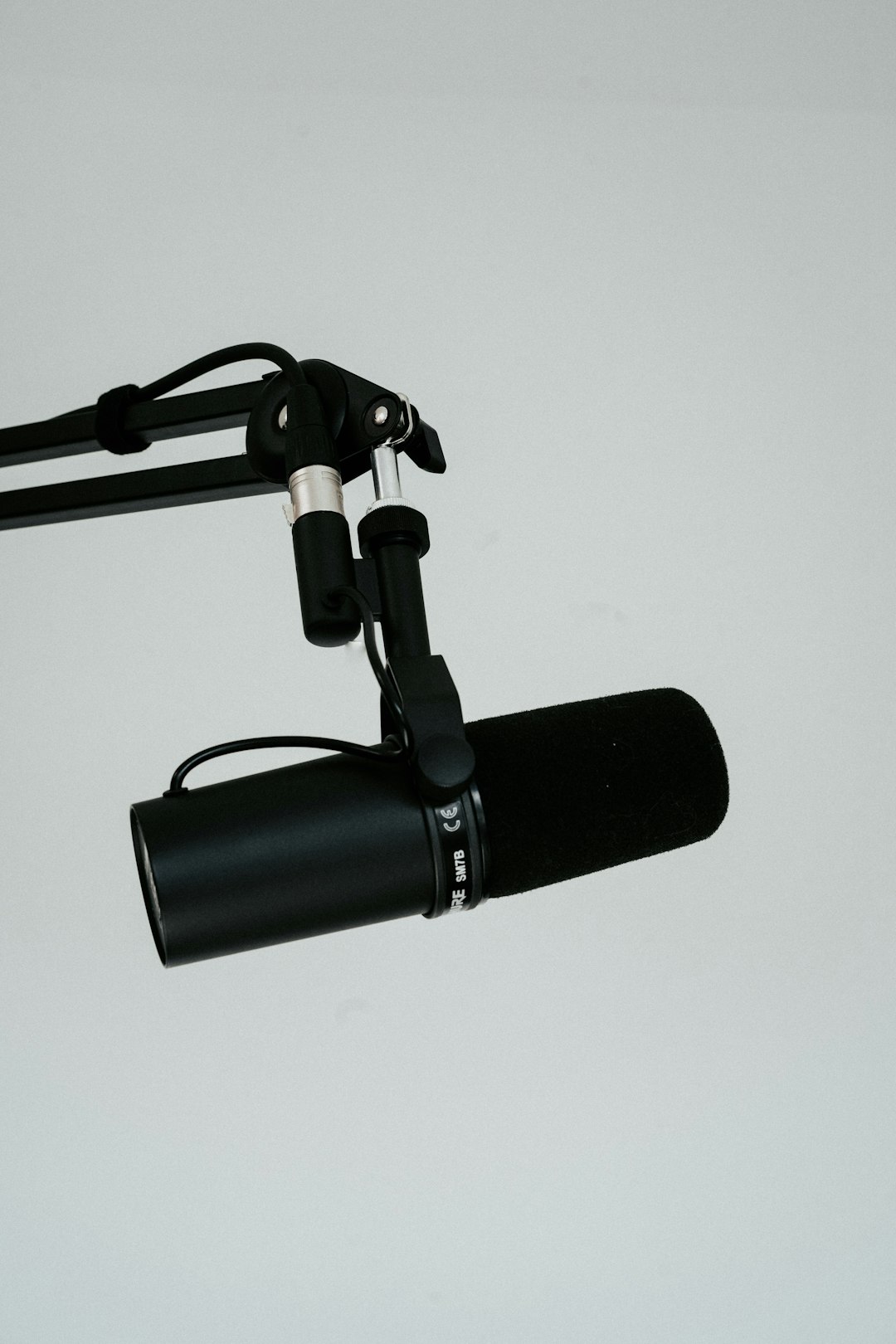
- Unplug and reconnect the microphone securely.
- Try a different USB port or audio jack.
- If using a USB hub, plug the microphone directly into the computer.
- Inspect the cable for visible wear or bending.
If the microphone works normally on another device, the issue may be software-related rather than hardware.
2. Restart the Device
Although basic, restarting can resolve temporary glitches affecting audio services. Operating systems manage audio through background services that occasionally crash or fail to initialize correctly.
A full restart resets these services and often fixes short-lived microphone detection issues.
3. Check Microphone Privacy Settings
Modern operating systems include privacy controls that limit microphone access. In some cases, the system briefly activates the mic before blocking it due to restricted permissions.
On Windows:
- Go to Settings > Privacy & Security > Microphone.
- Ensure Microphone Access is turned on.
- Enable access for the specific application in use.
On macOS:
- Open System Settings > Privacy & Security > Microphone.
- Allow the app permission to use the microphone.
4. Update or Reinstall Audio Drivers
Outdated or corrupted drivers are among the most common causes of microphone malfunctions.
To update drivers on Windows:
- Right-click the Start button.
- Select Device Manager.
- Expand Audio inputs and outputs.
- Right-click your microphone and choose Update driver.
If updating does not fix the issue, uninstall the device and restart the computer. The system will reinstall the appropriate driver automatically.
Mac users should ensure macOS is fully updated, as audio drivers are built into system updates.
5. Disable Exclusive Mode
Sometimes, one application takes exclusive control of the microphone, cutting off access after initial detection.
To disable Exclusive Mode in Windows:
- Open Control Panel > Sound.
- Go to the Recording tab.
- Select your microphone and click Properties.
- Open the Advanced tab.
- Uncheck Allow applications to take exclusive control.
This prevents apps from monopolizing audio input devices.
6. Adjust Power Management Settings
USB microphones may briefly activate before being shut down by power-saving features. Laptops in particular often disable USB ports to conserve battery.
- Open Device Manager.
- Expand Universal Serial Bus controllers.
- Right-click each USB Root Hub and select Properties.
- Under Power Management, uncheck Allow the computer to turn off this device to save power.
This change ensures consistent USB power delivery.
7. Close Background Applications
Applications such as video conferencing tools, recording software, or voice chat programs can conflict with one another. The microphone may activate for one app and then immediately shift focus to another, causing it to appear as if it stopped working.
- Open Task Manager (Windows) or Activity Monitor (Mac).
- Close unnecessary audio-related applications.
- Restart the desired app after closing others.
8. Run the Built-In Troubleshooter
Windows provides an automated troubleshooter to detect and correct microphone problems.
- Go to Settings > System > Troubleshoot.
- Select Other troubleshooters.
- Run the Recording Audio troubleshooter.
While not always perfect, it can resolve configuration errors quickly.
9. Test with Different Software
Sometimes the issue lies within one specific application. Testing the microphone in another program can clarify whether the problem is system-wide.
- Use a simple voice recorder app.
- Try an alternative video conferencing platform.
- Test using online microphone test tools.
Tool Comparison for Microphone Testing
| Tool | Best For | Pros | Cons |
|---|---|---|---|
| Windows Voice Recorder | Quick local tests | Built-in, easy to use | Limited diagnostic info |
| Online Mic Test Website | Browser-based testing | No installation required | Requires internet |
| OBS Studio | Advanced audio monitoring | Detailed input levels | Complex for beginners |
| Zoom or Teams Test Call | Conference testing | Real-world verification | App-specific results |
10. Check Input Levels
Improper gain settings may cause the microphone to register briefly and then mute due to extremely low input levels.
- Open Sound Settings.
- Select the microphone under Input.
- Adjust the Input Volume slider.
- Speak into the mic and observe level indicators.
11. Reset Audio Settings
If multiple adjustments have been made, restoring default audio settings may resolve conflicts.
On Windows:
- Go to Settings > System > Sound.
- Reset recommended defaults where available.
On macOS: restarting in Safe Mode can reset temporary configuration conflicts.
12. Consider Hardware Failure
If none of the above solutions work, the microphone itself may be defective. Internal wiring faults can cause intermittent contact, explaining why it works momentarily before cutting out.
Testing on another device is the fastest way to confirm hardware failure. If the issue persists across multiple systems, replacement may be necessary.
Common Causes at a Glance
- Loose cables or faulty ports
- Outdated or corrupted drivers
- Privacy restrictions
- Power-saving settings
- Software conflicts
- Hardware malfunction
Understanding these causes helps narrow the troubleshooting process considerably.
FAQ
Why does my microphone work for a second and then go silent?
This is often caused by driver issues, exclusive app control, or power-saving settings disabling the device. Checking drivers and disabling exclusive access usually resolves the issue.
Can a bad USB port cause this issue?
Yes. A failing or underpowered USB port can briefly detect a microphone before disconnecting it. Trying a different port or bypassing USB hubs is recommended.
How do I know if my microphone is broken?
Test it on another device. If the same issue occurs, the microphone hardware is likely faulty.
Does reinstalling drivers help?
In many cases, yes. Reinstalling removes corrupted driver files and resets configuration settings.
Why does this only happen in one app?
The application may lack proper permissions or have incorrect audio settings. Verify in-app input device selection and privacy permissions.
Can antivirus software block microphone access?
Some security programs restrict hardware access. Temporarily disabling the antivirus for testing can determine if that is the cause.
Should Exclusive Mode be disabled permanently?
For most users, disabling Exclusive Mode prevents conflicts and does not negatively impact performance.
By systematically following these troubleshooting steps, most users can identify and fix the issue of a microphone that works briefly and then stops. Addressing both hardware and software possibilities ensures a comprehensive solution and restores reliable audio input functionality.