


When FanControl throws the message “An Unexpected Error Occurred”, it can be both confusing and frustrating—especially for users relying on custom fan curves to keep their systems cool and quiet. This error typically appears when the application encounters a hardware communication issue, a corrupted configuration file, missing dependencies, or a permissions conflict. Fortunately, the problem is usually fixable with a systematic troubleshooting approach.
TL;DR: The “An Unexpected Error Occurred” message in FanControl is commonly caused by corrupted configs, outdated software, driver conflicts, or missing system permissions. Updating FanControl, reinstalling hardware drivers, running the program as administrator, or deleting configuration files resolves the issue in most cases. Advanced users may need to check BIOS settings or conflicting monitoring software. A step-by-step troubleshooting process can typically restore functionality in under 30 minutes.
Understanding Why the Error Happens
FanControl communicates directly with motherboard sensors and embedded controllers to manage fan speeds. When something interferes with that communication, the software cannot properly load drivers or detect hardware components, which leads to the generic error message.
Common causes include:
- Corrupted or incompatible configuration files
- Outdated FanControl version
- Conflicts with monitoring tools like MSI Afterburner or HWInfo
- Driver or chipset communication problems
- Insufficient administrative privileges
- BIOS settings restricting software fan control
Identifying the root cause is key to applying the correct fix.
Step 1: Restart and Run as Administrator
The simplest solution often works. Before diving into more complex fixes, a full system restart should be attempted. Temporary driver conflicts or background processes are often cleared after rebooting.
After restarting:
- Right-click on the FanControl executable.
- Select Run as administrator.
- Accept any User Account Control prompts.
FanControl requires low-level hardware access, and without proper permissions, it may fail to initialize correctly.
Step 2: Update FanControl to the Latest Version
Developers frequently release updates to improve compatibility with chipsets, motherboards, and Windows builds. An outdated version may not recognize updated drivers or system firmware.
To update properly:
- Download the newest release from the official source.
- Extract it into a fresh folder.
- Avoid installing over an old directory.
Using a clean folder ensures old corrupted files are not carried over into the new installation.
Step 3: Delete or Reset the Configuration File
Corrupted configuration files are one of the most frequent causes of this error. If FanControl crashes during startup or shutdown, it may save incomplete settings data.
To reset the configuration:
- Navigate to the FanControl installation folder.
- Locate configuration files (typically .json files).
- Delete or move them to a backup folder.
- Restart FanControl.
This forces the application to generate a fresh configuration.
Important: Custom fan curves will be erased, so users may want to back up profiles first.
Step 4: Check for Conflicting Monitoring Software
Many hardware monitoring tools attempt to access sensors simultaneously. Some common conflicting applications include:
- HWInfo
- MSI Afterburner
- AIDA64
- NZXT CAM
- iCUE
When two programs attempt to control the same fan headers or read identical sensors, access conflicts can occur.
How to Fix Software Conflicts
- Close all monitoring applications completely.
- Disable auto-start in Task Manager.
- Reboot and launch only FanControl.
- In HWInfo, disable “Shared Memory Support” if needed.
If the error disappears, a software conflict was likely the cause.
Step 5: Update Motherboard and Chipset Drivers
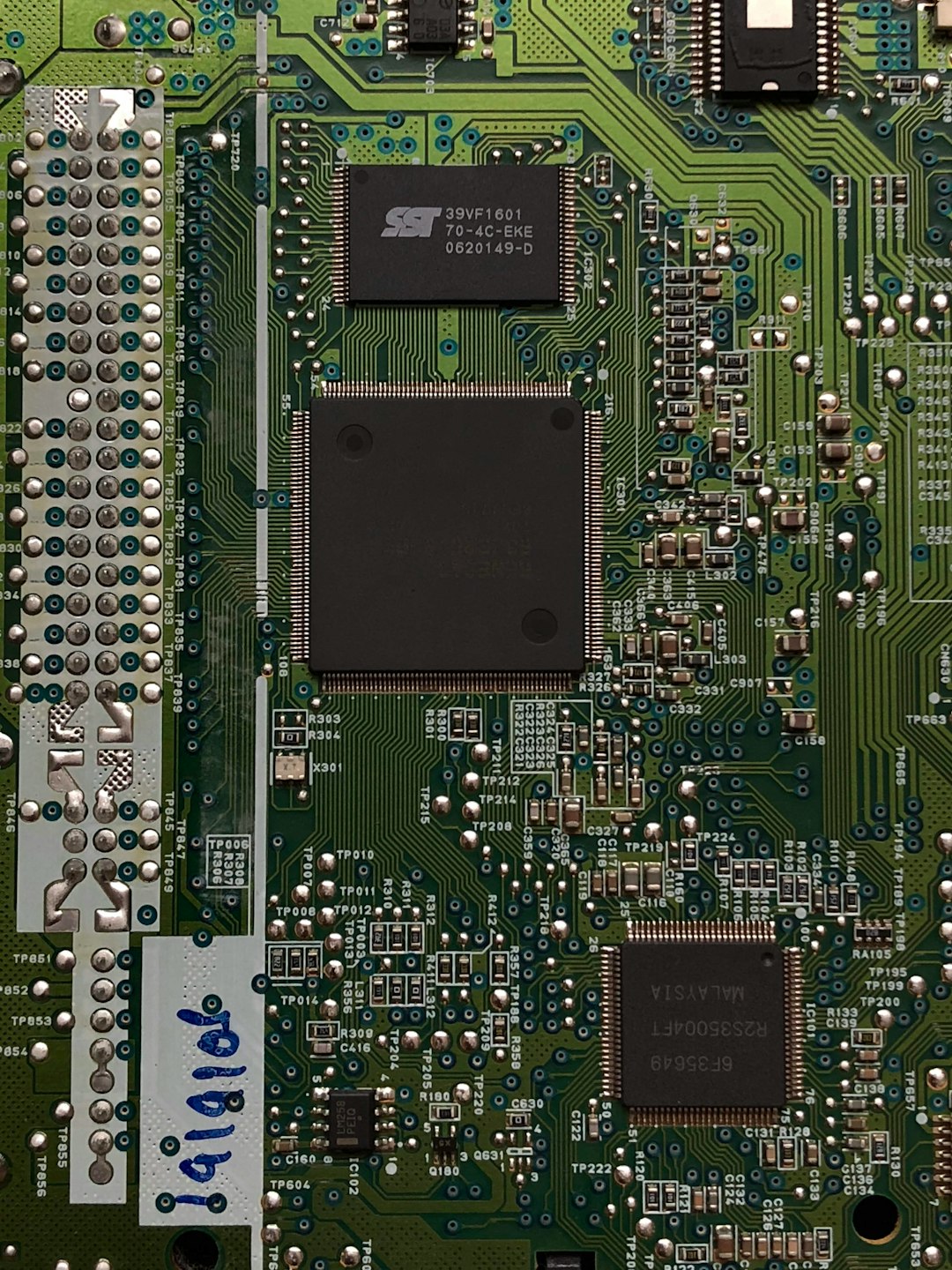
FanControl depends heavily on proper SMBus and embedded controller communication. Outdated chipset drivers can prevent this communication from functioning correctly.
To update drivers:
- Visit the motherboard manufacturer’s website.
- Download the latest chipset drivers.
- Install and restart the system.
Updating BIOS firmware can also resolve compatibility errors—but this step should only be performed by experienced users, as improper BIOS updates carry risk.
Step 6: Check BIOS Fan Control Settings
Some BIOS configurations override Windows-based control applications. If Smart Fan or Q-Fan features are enforcing strict control curves, FanControl may not gain proper access.
To check:
- Enter BIOS (usually by pressing Delete or F2 during boot).
- Locate fan control settings.
- Set fan headers to PWM mode if applicable.
- Disable restrictive auto curves temporarily.
After saving changes, test FanControl again.
Step 7: Reinstall the .NET Runtime
FanControl depends on the Microsoft .NET runtime. A corrupted framework installation may trigger startup errors.
To repair:
- Open Windows Settings.
- Navigate to Apps > Optional Features.
- Repair or reinstall the correct .NET version.
Restart the system after reinstalling.
Step 8: Perform a Clean Reinstallation
If none of the above resolves the issue, a complete reset may be required.
Clean reinstall process:
- Uninstall FanControl.
- Delete leftover installation folders.
- Remove configuration and cache files.
- Reboot the computer.
- Install the latest version in a new folder.
This eliminates hidden corrupted system hooks or mismatched versions.
Comparison Chart of Troubleshooting Methods
| Solution | Difficulty | Time Required | Success Rate |
|---|---|---|---|
| Run as Administrator | Very Easy | 2 Minutes | Moderate |
| Delete Config Files | Easy | 5 Minutes | High |
| Update FanControl | Easy | 5-10 Minutes | High |
| Disable Conflicting Software | Moderate | 10 Minutes | Very High |
| Update Drivers | Moderate | 15 Minutes | High |
| Update BIOS | Advanced | 20-30 Minutes | Situational |
When Hardware May Be the Problem
If none of the software-based fixes work, hardware limitations may be the issue. Older motherboards sometimes lack accessible embedded controllers compatible with FanControl. Additionally, damaged fan headers or sensor chips can also cause persistent errors.
Symptoms pointing to hardware issues include:
- Fans not appearing in BIOS
- Inconsistent RPM readings
- Random system sensor failures
In such cases, updating hardware monitoring solutions or consulting motherboard support documentation may be necessary.
Preventing Future Errors
Preventive maintenance reduces the chance of encountering this issue again.
- Keep chipset drivers up to date.
- Avoid running multiple fan control programs simultaneously.
- Back up configuration files before updates.
- Install major Windows updates carefully.
- Monitor system stability after BIOS changes.
Consistency in system maintenance significantly reduces software-related conflicts.
Frequently Asked Questions (FAQ)
1. Why does FanControl suddenly stop working after a Windows update?
Windows updates may modify hardware access permissions or replace chipset drivers. Updating FanControl and reinstalling drivers typically resolves post-update conflicts.
2. Is it safe to delete FanControl configuration files?
Yes. Deleting configuration files simply resets custom fan curves and sensor mappings. It does not damage hardware or the operating system.
3. Can antivirus software trigger this error?
In rare cases, antivirus programs block low-level hardware communication. Adding FanControl as an exception may solve the issue.
4. Should BIOS fan control be disabled completely?
Not necessarily. BIOS control can remain active, but overly restrictive automatic curves may need adjustment to allow software control.
5. Does reinstalling Windows fix the problem?
Reinstalling Windows is rarely necessary. Most issues can be resolved through configuration resets, driver updates, or conflict elimination.
6. Why are no fans detected even after reinstalling?
This may indicate unsupported hardware, incorrect BIOS fan modes, or physical fan header issues. Verifying BIOS fan detection is the first step.
7. How long should troubleshooting take?
Most users resolve the issue within 15–30 minutes by following systematic steps.
By working through each solution methodically, users can typically eliminate the “An Unexpected Error Occurred” message and restore full fan control functionality without advanced technical intervention.