


Few things are more frustrating than turning on a computer and noticing green lines streaking across the monitor. Whether faint and flickering or bold and permanent, these visual glitches can disrupt work, gaming, and streaming. The good news is that green lines are often fixable with simple troubleshooting steps, and they do not always mean the monitor is permanently damaged.
TL;DR: Green lines on a monitor are usually caused by loose cables, outdated graphics drivers, GPU issues, or a failing display panel. Start by checking and replacing cables, updating drivers, and testing the monitor on another device. If the issue persists, the problem may be with the graphics card or the monitor’s internal hardware. Early diagnosis can often save time and money.
Why Green Lines Appear on a Monitor
Green lines can show up vertically, horizontally, or even as flickering patches. Understanding what causes them is the first step in fixing the problem. The most common causes include:
- Loose or damaged display cables
- Outdated or corrupted graphics drivers
- Graphics card malfunction
- Monitor panel damage
- Incorrect display settings
Each of these issues requires a slightly different approach, so identifying patterns—like whether the lines appear all the time or only during certain tasks—can help narrow the cause.
Start with the Simplest Fix: Check the Cables
Before assuming the worst, it’s best to inspect the physical connections. A loose or faulty HDMI, DisplayPort, DVI, or VGA cable can easily cause green lines.
Steps to follow:
- Turn off the monitor and computer.
- Unplug the display cable from both ends.
- Inspect for bent pins, fraying, or visible damage.
- Reconnect securely or try a different cable.
- If possible, use a different port on the monitor or GPU.
If the green lines disappear after changing the cable, the issue was likely connection-related. This is one of the most common and easiest fixes.
Update or Reinstall Graphics Drivers
Graphics drivers control how the computer communicates with the monitor. Corrupted or outdated drivers can produce color distortions, including green lines.
How to update drivers:
- On Windows, open Device Manager and locate Display Adapters.
- Right-click the graphics card and select Update Driver.
- Alternatively, download the latest drivers directly from NVIDIA, AMD, or Intel.
If updating doesn’t work, reinstalling the driver entirely may help. Many users fix color line issues simply by performing a clean driver installation.
Adjust Display Settings
Sometimes incorrect resolution or refresh rate settings can cause visual artifacts.
Check the following:
- Ensure the resolution matches the monitor’s native resolution.
- Verify the refresh rate is set correctly.
- Disable overclocking if enabled.
Resetting display settings to default can eliminate configuration-related problems.
Test the Monitor on Another Device
If troubleshooting steps haven’t worked, the next step is identifying whether the issue lies with the monitor or the computer.
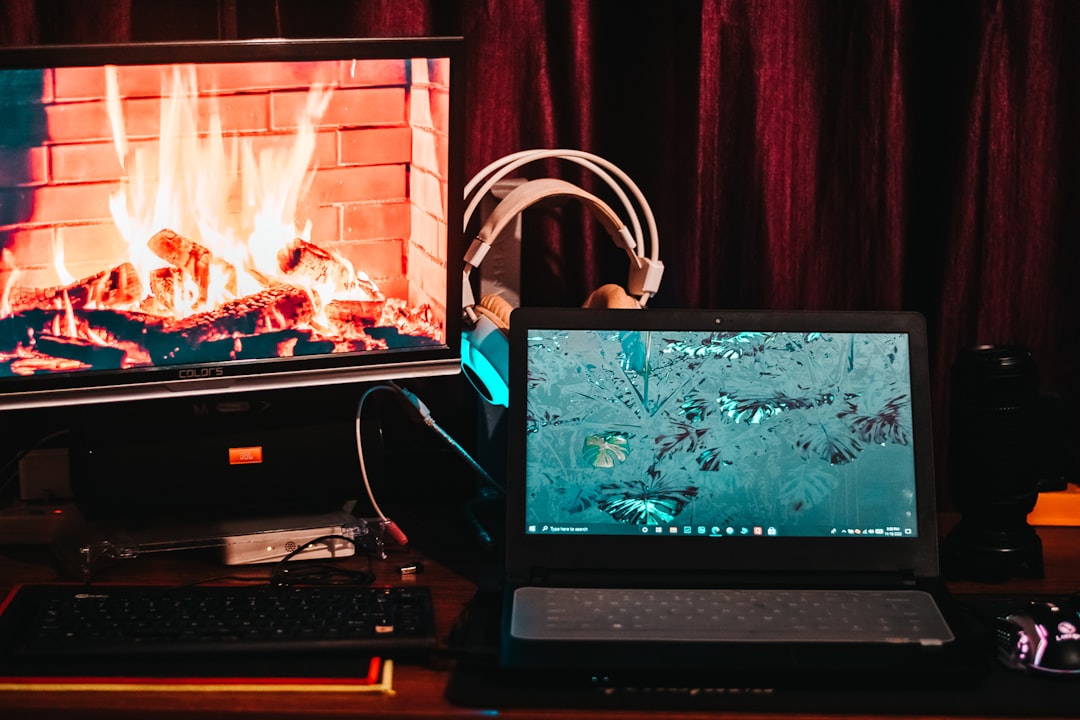
Connect the monitor to a different computer or laptop. If the green lines still appear, the monitor is likely the issue. If not, the computer’s graphics card may be the culprit.
Signs of a Failing Graphics Card
A malfunctioning GPU can produce green vertical or horizontal lines, flickering, or screen tearing.
Common symptoms include:
- Artifacts during gaming
- Random crashes or system freezes
- Lines appearing only under heavy load
- Overheating GPU temperatures
If overheating is suspected, cleaning dust from fans and ensuring good airflow may help. Reapplying thermal paste can sometimes resolve issues in older systems.
If the graphics card continues to show problems across different monitors, replacement may be necessary.
Monitor Panel Damage Explained
When green lines remain constant regardless of cables or devices, the monitor’s LCD or LED panel may be damaged. This often occurs due to:
- Physical impact
- Manufacturing defects
- Age-related degradation
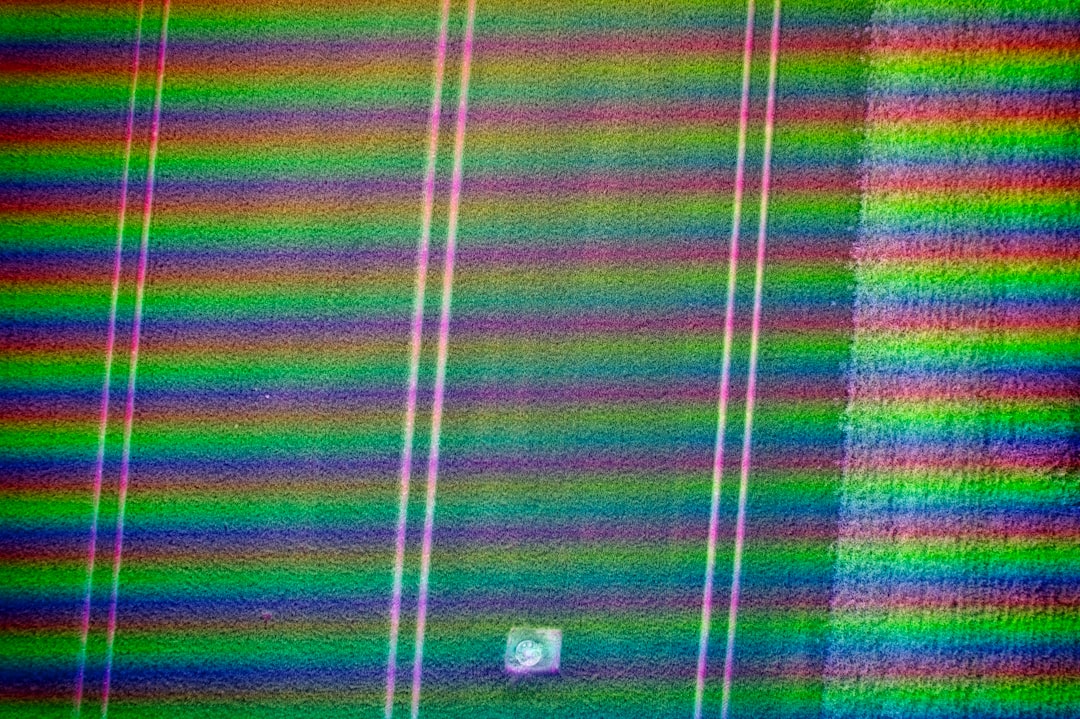
Panel damage usually presents as a thin, perfectly straight vertical or horizontal line that never moves. Unfortunately, this type of issue often requires professional repair or monitor replacement.
Quick Troubleshooting Comparison Chart
| Possible Cause | Difficulty to Fix | Cost | Likelihood |
|---|---|---|---|
| Loose or damaged cable | Easy | Low | Very Common |
| Outdated graphics driver | Easy | Free | Common |
| Incorrect display settings | Easy | Free | Moderate |
| Graphics card failure | Moderate to Hard | High | Less Common |
| Monitor panel damage | Hard | High | Varies |
Temporary Fixes That Sometimes Work
While not guaranteed solutions, some temporary adjustments have helped users:
- Gently pressing along the bezel where the line appears
- Running a pixel-fixing video tool
- Power cycling the monitor
- Performing a factory reset from the monitor’s settings menu
These are not permanent repairs for hardware damage, but they may resolve minor glitches caused by stuck pixels or loose internal connections.
When to Repair vs Replace
If the issue is cable or driver-related, repair costs are minimal. However, when the panel or GPU is failing, replacement often makes more financial sense.
Consider replacement if:
- The monitor is several years old
- Repair costs exceed 50% of a new monitor’s price
- Multiple lines are spreading over time
Modern monitors are often more affordable than panel repairs, making new purchases a practical solution.
How to Prevent Green Lines in the Future
Preventative maintenance can reduce the chance of display issues:
- Use high-quality certified cables
- Avoid sharply bending connectors
- Keep GPU drivers updated
- Ensure proper ventilation for the computer
- Protect the monitor from physical damage
Taking care of both the monitor and the computer system significantly reduces display-related problems.
Frequently Asked Questions (FAQ)
1. Why do green lines only appear during gaming?
This often points to a graphics card issue. Gaming places higher demands on the GPU, which can reveal overheating, driver problems, or hardware failure.
2. Can a bad HDMI cable really cause green lines?
Yes. Damaged or low-quality HDMI cables can corrupt the signal, causing color distortion, flickering, or lines across the screen.
3. Are green lines a sign my monitor is dying?
Not always. Many cases are cable- or driver-related. However, if the line is permanent and doesn’t change with different devices, the panel may be failing.
4. How much does it cost to fix a monitor with green lines?
If the issue is a cable or driver, the fix may be free or under $20. Panel repairs, however, can cost nearly as much as buying a new monitor.
5. Can I fix green lines myself?
Most basic troubleshooting steps can be done at home. Hardware repairs involving internal components should be handled by professionals.
6. Why do the lines disappear sometimes?
Intermittent lines often indicate a loose cable connection or early-stage GPU issues rather than permanent screen damage.
Final Thought: Green lines on a monitor may look alarming, but they are often the result of simple, fixable problems. By starting with cables and drivers before assuming hardware failure, most users can diagnose and resolve the issue quickly. Acting early can prevent further damage and restore a clear, uninterrupted display.