

Few things are more frustrating for PlayStation users than seeing the dreaded “Connection to the server timed out” error during sign-in. Whether you’re trying to jump into your favorite multiplayer game, access the PlayStation Store, or just connect with friends, this error can quickly bring your plans to a halt. While it might seem like a complicated issue, it’s usually caused by network connectivity problems or temporary server disruptions—and, thankfully, there are several ways to fix it.
TLDR
If you’re seeing the “Connection to the server timed out” error when signing in to PlayStation Network (PSN), don’t panic. It often relates to temporary network issues, outdated software, or DNS conflicts. You can resolve it by checking your internet settings, switching DNS servers, updating your PlayStation software, or restarting your modem. If all else fails, Sony support or community forums may help as a last resort.
Common Causes of the Error
The “Connection to the server timed out” message can stem from a variety of sources, such as:
- Unstable or slow internet connection
- PlayStation Network outages
- Incorrect DNS settings
- Router or modem malfunctions
- Outdated PlayStation system software
Identifying the root cause can save you time and effort. Below is a comprehensive list of potential solutions for resolving this connectivity issue and getting you back online.
1. Check PlayStation Network (PSN) Status
Before diving into more technical fixes, it’s worth checking if there’s a server-side issue. Head over to the official PlayStation Network Status page to see if there are any outages or maintenance updates.
If PSN services are down, there isn’t much you can do besides waiting it out. However, if the servers are up and running, you can move ahead with troubleshooting your local setup.
2. Restart Your Devices
It might sound simple, but a proper reboot can often work wonders. Follow these steps:
- Turn off your PlayStation console completely—not just rest mode.
- Unplug your modem and router for at least 30 seconds.
- Plug them back in and wait a few minutes for the network to fully reinitialize.
- Turn your PlayStation back on and attempt to sign in again.
This allows your internet connection to reset cleanly and can clear temporary connectivity issues.
3. Test Your Network Connection
Navigate to Settings > Network > Test Internet Connection on your PlayStation. This test checks for:
- IP Address assignment
- Internet connection stability
- PlayStation Network sign-in capability
If you fail one of these stages, particularly the last one, it confirms a network-side issue that you’ll need to address.
4. Switch DNS Settings
Sometimes, your default DNS provider (usually from your ISP) might fail to properly resolve Sony’s servers. Switching to a faster and more reliable DNS provider can solve this.
To change DNS on your PlayStation:
- Go to Settings > Network > Set Up Internet Connection.
- Choose Wi-Fi or LAN depending on your setup.
- Select Custom, and go through the prompts until you reach DNS settings.
- Choose Manual and enter the following DNS addresses:
- Primary DNS: 8.8.8.8 (Google)
- Secondary DNS: 8.8.4.4 (Google)
Alternatively, you can use Cloudflare DNS (1.1.1.1 and 1.0.0.1) or OpenDNS (208.67.222.222 and 208.67.220.220) for potentially faster resolution.
5. Use a Wired Connection
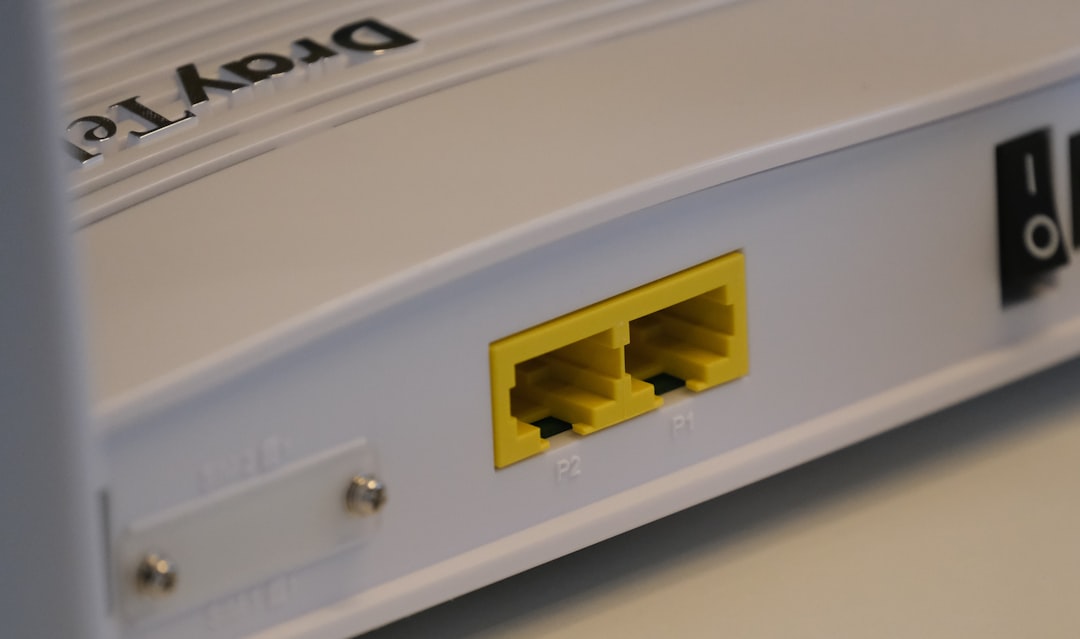
Wi-Fi can be spotty, especially if there are physical obstructions or interference from other devices. If you’ve been using wireless, try switching to a wired Ethernet connection. This often results in more stable and faster internet access, which may resolve timeout issues.
6. Update PlayStation System Software
Outdated software can interfere with network communications. To update your system software:
- Navigate to Settings > System > System Software > System Software Update and Settings.
- Select Update System Software.
Your PlayStation will check for available updates and install them as needed. Once the update is complete, restart your console and attempt sign-in once more.
7. Set Up a Static IP Address
A dynamic IP address, which frequently changes, can sometimes cause disconnection errors. Assigning a static IP address to your PlayStation ensures it maintains a consistent identity on your home network.
Steps:
- Access Settings > Network > View Connection Status and note your current IP settings (IP address, subnet mask, default gateway).
- Go back to Set Up Internet Connection, choose Custom, and input those values manually.
Finally, test your internet connection again to see if this resolves the issue.
8. Enable UPnP on Your Router
Universal Plug and Play (UPnP) allows devices on a network to find and communicate with each other more efficiently. PlayStation consoles benefit from UPnP as it helps with NAT (Network Address Translation) settings required for gaming.
To enable UPnP:
- Access your router’s admin panel (usually by typing
192.168.1.1or192.168.0.1into a web browser). - Log in with your username and password (check label on your router if unsure).
- Locate the UPnP settings under advanced or network settings and enable it.
Be sure to save changes and reboot your router. This can help your PlayStation establish more efficient server communication.
9. Check NAT Type
PlayStation network performance is heavily influenced by NAT (Network Address Translation) types:
- Type 1: Direct connection (best for gaming)
- Type 2: Open or moderate, generally fine
- Type 3: Restricted, may cause sign-in and multiplayer issues
You can check your NAT type by running the connection test mentioned earlier. If you’re on Type 3, you may need to enable UPnP (as above) or set up port forwarding on your router to improve connectivity.
10. Factory Reset Router (Use as Last Resort)
If all else fails and you’re still experiencing connectivity issues across multiple devices, consider performing a factory reset on your router. This removes all custom settings and can fix deeply-rooted configuration issues.
Be sure to back up your internet login credentials and settings beforehand, especially if you rely on a unique configuration.
Bonus Tip: Use a Hotspot (Temporary Solution)
If you’re uncertain whether the issue lies with your home network, try connecting your PlayStation to a mobile hotspot. If sign-in works via mobile data, it confirms that the problem is isolated to your ISP or router settings. This isn’t a long-term fix, but it can help with diagnosis.
When to Contact PlayStation Support
If none of these methods resolve the issue, it’s time to consult PlayStation Support. Provide them with:
- Your console model
- Steps you’ve already tried
- Error codes or messages you receive
Community forums like Reddit or the official PlayStation forums can also be valuable resources for user-driven solutions and troubleshooting advice.
Conclusion
While the “Connection to the server timed out” error can be a major annoyance, it’s usually something you can fix with focused troubleshooting. Whether it’s a misconfigured DNS setting,